Why Hardwired Smart Switches Are the Foundation
When embarking on a whole-home smart home system installation, many beginners make the mistake of starting with smart bulbs. While smart bulbs are great for lamps, they are a poor foundation for a whole-home lighting system. If someone flips the physical wall switch, a smart bulb loses power and goes offline, rendering your app and voice controls useless. The most reliable, professional-grade approach is to install hardwired smart switches and dimmers. This keeps your physical wall controls functional while enabling app control, scheduling, and voice integration.
In this comprehensive guide, we will walk you through the entire smart home system installation step-by-step, focusing on the physical wiring of smart switches, hub configuration, network topology, and automation workflows. Whether you are upgrading a single room or wiring a new construction home, these principles apply.
Step 1: Preparation, Safety, and Tool Gathering
Electrical work requires strict adherence to safety protocols. According to the National Fire Protection Association (NFPA), electrical failures or malfunctions are a leading cause of home fires. Never attempt to wire a smart switch while the circuit is live.
Essential Tools for the Job
- Non-Contact Voltage Tester: Absolutely mandatory for verifying that the power is off before touching any wires.
- Wire Strippers/Cutters: For trimming and stripping 14 or 12 AWG copper wiring.
- Flathead and Phillips Screwdrivers: For removing faceplates and terminal screws.
- Wire Nuts or Wago Connectors: Wago lever-nuts are highly recommended for DIYers as they create secure, easily reversible connections.
- Electrical Tape: For wrapping the sides of the switch to cover exposed terminal screws.
Safety Protocol
Locate your home's main electrical panel and turn off the breaker corresponding to the room you are working in. Tag the breaker so no one else turns it back on. Once off, remove the existing faceplate and switch, then use your non-contact voltage tester on all wires in the gang box. Test the tester on a known live circuit first to ensure the tool's battery is functioning correctly.
Step 2: Selecting the Right Smart Switch Ecosystem
Before you open any junction boxes, you must choose your ecosystem. Your choice will dictate whether you need a proprietary hub, a neutral wire, or specific network requirements. Below is a comparison of the top three smart switch ecosystems on the market.
| Brand / Ecosystem | Neutral Wire Required? | Protocol | Hub Required? | Avg. Cost per Switch |
|---|---|---|---|---|
| Lutron Caseta | No | Clear Connect (RF) | Yes (Lutron Smart Bridge) | $60 - $70 |
| Leviton Decora Smart | Yes (mostly) | Wi-Fi / Thread / Matter | No (for Wi-Fi) / Yes (for Matter) | $40 - $55 |
| TP-Link Kasa Smart | Yes | Wi-Fi (2.4GHz) | No | $25 - $35 |
| Philips Hue (Switches) | No (Battery/Hue Tap) | Zigbee | Yes (Hue Bridge) | $50 - $120 |
Note: The 'Neutral Wire' is a critical factor. Older homes (pre-1980s) often lack neutral wires in the switch box. If you do not have a neutral wire, Lutron Caseta is your most reliable option, as it operates by bleeding a tiny amount of current through the load (the light bulb).
Step 3: The Physical Installation Process (Single-Pole)
A single-pole switch controls a light from one location. Here is the step-by-step wiring process for a standard smart switch requiring a neutral wire (like Kasa or Leviton Wi-Fi models).
Identifying Your Wires
Inside your gang box, you will typically find:
- Line (Hot): The wire bringing power from the breaker panel. Usually black.
- Load: The wire carrying power up to the light fixture. Usually black or red.
- Neutral: The return path for the circuit. Usually a bundle of white wires tucked in the back of the box.
- Ground: Bare copper or green wire, essential for safety.
Pro Tip: If you aren't sure which black wire is Line and which is Load, you can safely cap them, turn the breaker back on temporarily, and carefully use a voltage tester. The wire that reads 'live' is your Line wire. Turn the breaker back off immediately after testing.
Wiring the Smart Switch
- Connect the Ground: Attach the green ground wire from the smart switch to the bare copper ground wire in the box using a wire nut or Wago connector.
- Connect the Neutral: Your smart switch will have a white neutral wire. You must connect this to the bundle of white neutral wires in the back of the box. Do not disconnect the existing neutral wires from each other; simply add the switch's neutral wire to the bundle.
- Connect the Line and Load: Attach the black Line wire from the switch to the live power source, and the red (or second black) Load wire to the wire leading to the fixture.
- Secure and Close: Carefully fold the wires back into the box. Smart switches are significantly deeper than standard toggle switches due to their internal radios. Use a deep gang box if possible, or carefully manage the wire bends. Screw the switch into the box, attach the faceplate, and restore power at the breaker.
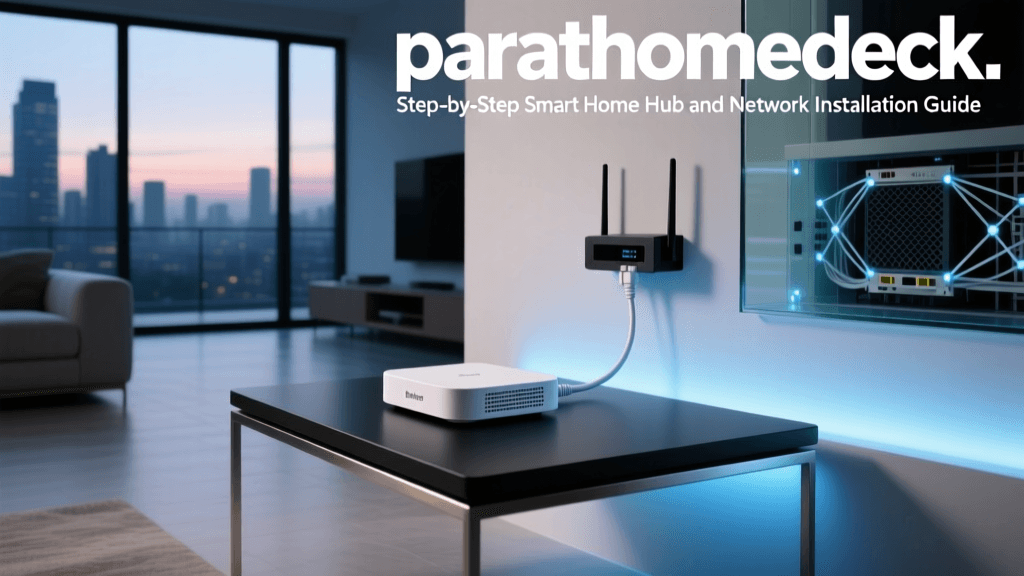
Step 4: Hub Configuration and Network Topology
If your system requires a hub (like the Lutron Smart Bridge or Philips Hue Bridge), the physical placement and network connection of this hub are critical for system reliability.
Optimal Hub Placement
Hubs act as the brain of your smart home, translating your router's Wi-Fi or Ethernet signals into the mesh protocols (Zigbee, Thread, Clear Connect) your switches use. Place your hub in a central, elevated location in your home. Avoid stuffing it inside a metal media cabinet or behind a television, as metal and electromagnetic interference will severely degrade the radio range.
Network Security and IoT Isolation
Smart home hubs and Wi-Fi switches are Internet of Things (IoT) devices. The Cybersecurity and Infrastructure Security Agency (CISA) strongly recommends securing IoT devices to prevent unauthorized network access. To achieve this:
- Create an IoT VLAN or Guest Network: Log into your router (e.g., Ubiquiti, Eero, or ASUS) and create a separate 2.4GHz SSID specifically for smart home devices.
- Enable Client Isolation: Prevent your smart switches from communicating directly with your personal computers or NAS drives.
- Firmware Updates: Immediately upon plugging in your hub, check the companion app for firmware updates. Hubs are frequently targeted by botnets if left on factory firmware.
The Rise of Matter and Thread
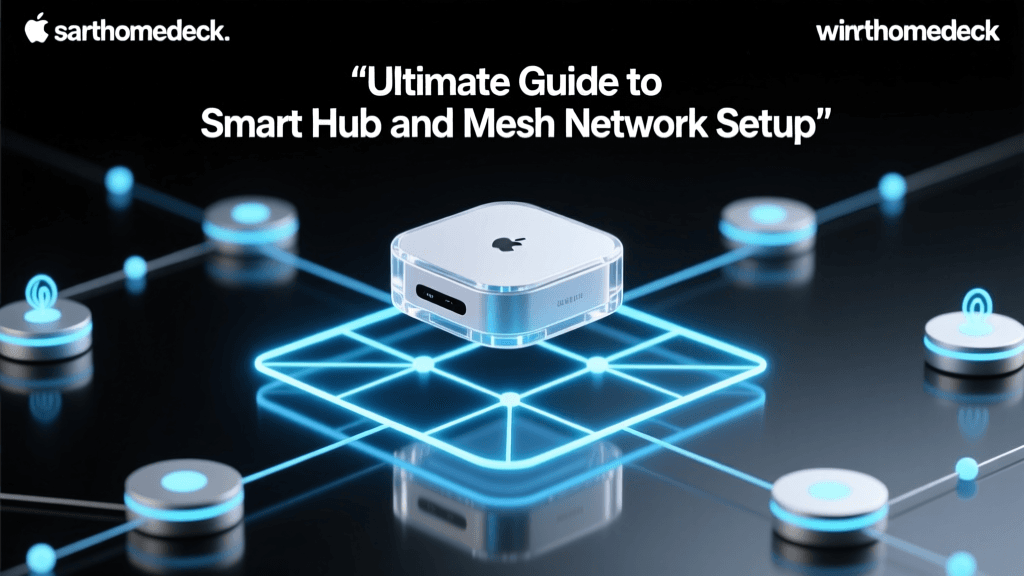
When configuring your network, consider future-proofing. The CSA Group's Matter protocol is revolutionizing smart home interoperability by allowing devices from different brands to communicate locally without relying on cloud servers. If you are buying new hubs today, look for Thread border routers (built into the latest Apple TV 4K, HomePod Mini, and Nest Hubs) which utilize the same 2.4GHz spectrum as Wi-Fi but create a low-power, self-healing mesh network specifically for smart home sensors and switches.
Step 5: App Pairing and Voice Assistant Integration
With the physical installation and network topology established, it is time to bring the system to life in software.
- Download the Native App: Start with the manufacturer's app (e.g., Lutron app, Kasa app). Create an account and follow the on-screen prompts to discover the hub or switch on your local network.
- Name and Assign Rooms: Use clear, standardized naming conventions. Instead of 'Left Lamp', use 'Living Room - Floor Lamp'. This makes voice commands significantly more accurate.
- Link to Voice Assistants: Navigate to the app's 'Integrations' or 'Works With' section. Link your account to Amazon Alexa, Google Home, or Apple HomeKit. Authorize the skill, and allow the assistant to discover devices.
Advanced Automation Workflows
The true power of a smart home system installation lies in automation—removing the need to use the app or your voice entirely.
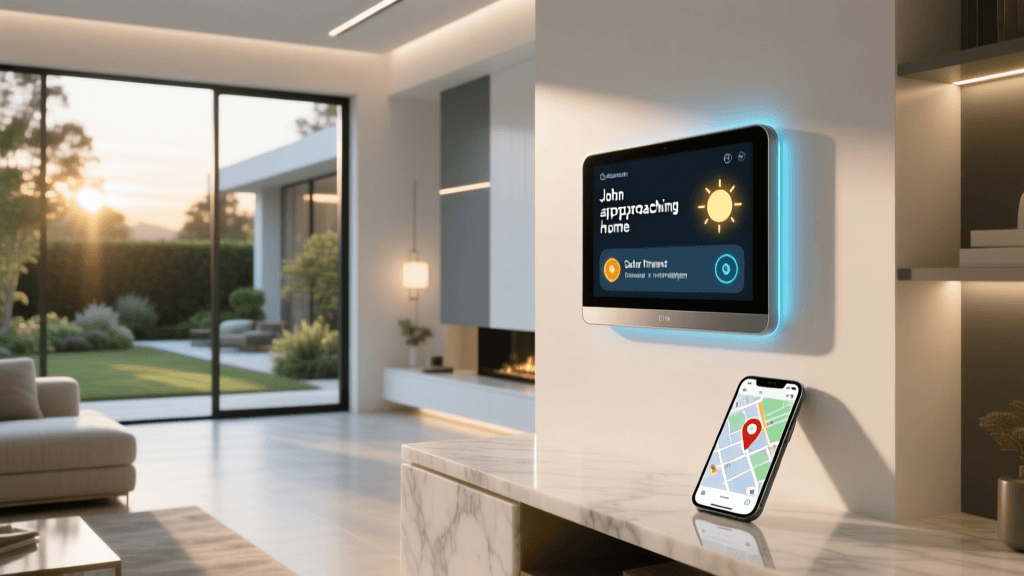
Geofencing
Set up location-based triggers. When the last person's smartphone leaves a 500-foot radius around your home, the hub automatically turns off all lights and smart plugs. When the first person enters the radius, the porch and entryway lights turn on.
Circadian Lighting and Schedules
If you installed smart dimmers, configure 'Natural Light' or circadian schedules. Set the switches to turn on at 20% brightness with a warm color temperature (if using smart bulbs in tandem) at 6:00 AM, gradually increasing to 100% brightness by 8:00 AM. In the evening, program the dimmers to automatically fade to 40% brightness at 9:00 PM to promote healthy melatonin production before bed.
Sensor Integration
Pair your smart switches with PIR (Passive Infrared) or mmWave (millimeter wave) motion sensors. For high-traffic areas like hallways, garages, and laundry rooms, configure the switches to turn on upon motion detection and turn off after 3 minutes of no motion. mmWave sensors are highly recommended over traditional PIR sensors for rooms where you sit still (like a home office or reading nook), as they can detect the micro-movements of your breathing and prevent the lights from turning off while you are working.
Troubleshooting Common Installation Hurdles
Even with careful planning, DIY installers often encounter a few common roadblocks during the setup process.
The Switch Won't Power On
If the LED indicator on the smart switch does not light up after restoring the breaker, 99% of the time, the neutral wire connection is faulty. The internal radio requires a complete circuit to draw standby power. Double-check that the switch's white wire is securely connected to the bundle of white neutral wires in the back of the box, not to a white wire that is actually being used as a 'traveler' or switched hot in a 3-way configuration.
Ghosting or Flickering LED Bulbs
If your LED bulbs flicker or emit a faint glow when the smart dimmer is turned off, you are experiencing 'ghosting.' This happens because the dimmer's minimum wattage requirement isn't being met by the low-draw LEDs, or the dimmer is bleeding current. Solution: Install an LUT-MLC (Minimum Load Capacitor) across the load and neutral wires at the light fixture itself, or ensure you are using dimmable LEDs specifically rated for smart dimmers.
Hub Offline / Cloud Connectivity Issues
If your hub shows as 'offline' in the app despite being plugged in, check your network topology. Hubs generally require a 2.4GHz connection or a direct Ethernet connection. If you are using a mesh Wi-Fi system with a single SSID for both 2.4GHz and 5GHz, the hub might be struggling to maintain a handshake. Assigning the hub a static IP address in your router's DHCP reservation table will prevent IP conflicts and keep your smart home system stable through router reboots.
Conclusion
A successful smart home system installation requires more than just swapping out wall plates. It demands a fundamental understanding of your home's electrical wiring, a strategic approach to network security, and a vision for how automations will seamlessly integrate into your daily life. By starting with a robust foundation of hardwired smart switches and a properly configured central hub, you eliminate the unreliability of smart bulbs and create a responsive, professional-grade smart home that will serve you for years to come.