The Fragmented Smart Home Reality
In the modern smart home, ecosystem fragmentation is the most common hurdle for DIY installers and homeowners. It is incredibly common to find households where one partner relies on an iPhone and Apple HomeKit, while the other prefers Android and Google Home, and the kids use Amazon Echo devices in their bedrooms. Attempting to force every smart device into a single proprietary ecosystem often leads to compromised functionality, lost features, and expensive hardware replacements.
While the Connectivity Standards Alliance (CSA) Matter protocol aims to solve this at the device level, the reality of today's smart home landscape still requires a robust central bridge to manage legacy Zigbee, Z-Wave, and Wi-Fi devices across competing platforms. The most powerful, cost-effective, and reliable method to achieve true multi-ecosystem integration is by deploying Home Assistant as your central hub, acting as the ultimate translator between Apple, Google, and Amazon.
This guide will walk you through the hardware selection, network configuration, and step-by-step setup required to bridge your entire smart home into Apple HomeKit, Google Home, and Amazon Alexa simultaneously, ensuring local control, low latency, and unified automations.
Choosing Your Bridge Hardware
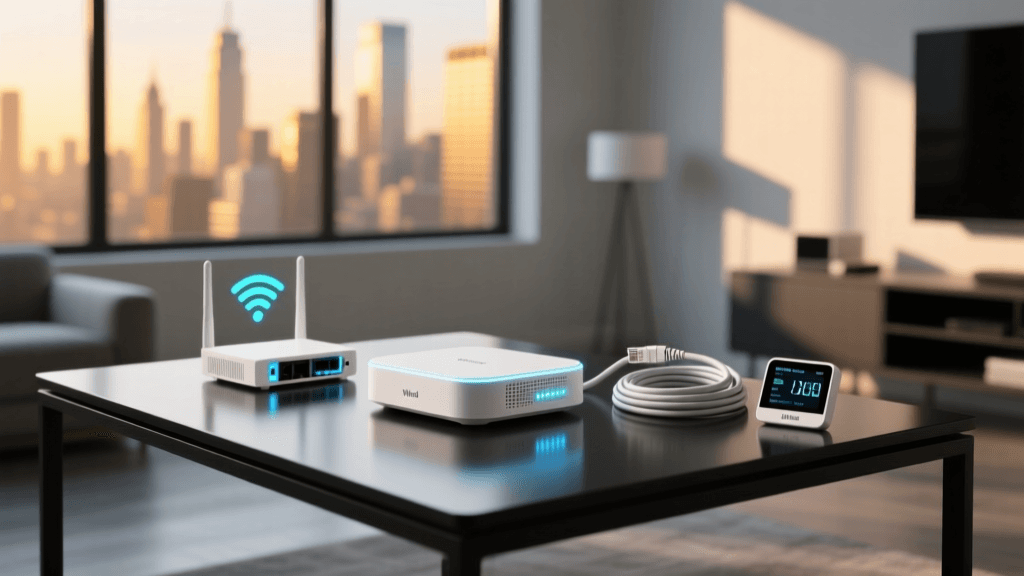
To run a multi-ecosystem bridge, you need a dedicated, always-on computer capable of handling local database logging, Zigbee/Z-Wave radio coordination, and API polling. Here is a comparison of the top hardware choices for a Home Assistant bridge:
| Hardware Option | Estimated Cost | Ease of Setup | Performance & Storage | Best For |
|---|---|---|---|---|
| Home Assistant Green | $99 | Plug-and-Play | Good (eMMC, fanless) | Beginners wanting a guaranteed, supported local hub. |
| Raspberry Pi 5 (8GB Kit) | $120 - $150 | Moderate (Requires OS flashing) | Excellent (Active cooling, fast I/O) | DIYers who want maximum flexibility and GPIO access. |
| Intel NUC 11 (i3/i5) | $250 - $400 | Advanced (Requires BIOS/Proxmox setup) | Superior (NVMe SSD, Virtualization) | Power users running Plex, Pi-hole, and HA on one node. |
Recommendation: For a dedicated multi-ecosystem bridge, the Home Assistant Green ($99) is the most frictionless entry point. However, if you plan to run advanced add-ons like Frigate NVR or a local voice assistant pipeline, invest in an Intel NUC with a 256GB NVMe SSD to prevent database corruption and ensure lightning-fast state syncing across Apple and Google interfaces.
Step 1: Installing and Configuring Home Assistant OS
Regardless of your hardware choice, you should run Home Assistant OS (HAOS). This operating system is purpose-built to manage the Supervisor, Add-ons, and Docker containers required for complex integrations.
- Flash the OS: Use BalenaEtcher to flash the HAOS image to your NVMe drive or MicroSD card (for Pi/Green).
- Initial Onboarding: Connect the device via Ethernet to your primary router. Navigate to
http://homeassistant.local:8123on your PC. - Install Core Add-ons: Before bridging to external ecosystems, install the Mosquitto Broker (for MQTT devices), Zigbee2MQTT (if using a Sonoff Zigbee 3.0 USB Dongle Plus), and File Editor.
- Establish Local Control: Ensure all your smart bulbs, switches, and sensors are integrated into Home Assistant locally. Multi-ecosystem bridging will only expose entities that HA can already control locally.
Step 2: Bridging to Apple HomeKit
Apple HomeKit is notoriously strict about local network discovery, relying heavily on mDNS (Bonjour). To expose your Home Assistant entities to Apple devices, we use the HomeKit Bridge integration. According to the official Home Assistant HomeKit Bridge Documentation, this integration creates a virtual accessory that Apple devices can pair with.
Configuration Steps:
- Navigate to Settings > Devices & Services > Add Integration and search for HomeKit Bridge.
- Domain Selection: Select the domains you want to expose (e.g., Lights, Switches, Climate, Sensors). Do not expose your entire home; group entities logically to prevent Apple Home from lagging.
- Pairing Mode: Home Assistant will generate an 8-digit QR code and PIN. Open the Apple Home app on your iPhone or iPad, select Add Accessory, and scan the code.
- Assign Rooms: Once paired, Apple will import all exposed entities. You will need to manually assign them to rooms within the Apple Home app.
Pro Tip for Apple Users: You must have an dedicated Apple Home Hub (an Apple TV 4K or a HomePod Mini) on the exact same VLAN and subnet as your Home Assistant server for remote access and Siri automations to function reliably.
Step 3: Connecting Google Home and Amazon Alexa
Unlike Apple's local mDNS approach, Google Home and Amazon Alexa rely on cloud-based API polling and webhooks. While you can set up manual port forwarding and DuckDNS, the most secure and stable method is using Home Assistant Cloud (Nabu Casa).
The Nabu Casa Advantage ($6.50/month)
Nabu Casa provides a secure, encrypted tunnel from your local Home Assistant instance to Google and Amazon servers without opening any ports on your router. This is critical for maintaining a secure network perimeter.
- Create an account at nabucasa.com and link it to your Home Assistant instance via Settings > Home Assistant Cloud.
- Google Assistant Setup: In the Cloud settings, enable Google Assistant. You will be prompted to link your Home Assistant Cloud account via the Google Home app on your phone. As noted in the Home Assistant Google Assistant Integration guide, this allows for instant two-way state synchronization.
- Amazon Alexa Setup: Enable the Alexa integration in the same Cloud menu. Open the Alexa app, go to Skills, and enable the 'Home Assistant' skill, logging in with your Nabu Casa credentials.
- Entity Filtering: Use the
cloud.yamlor the UI filters to hide sensitive entities (like internal server metrics or guest Wi-Fi toggles) from Google and Alexa.
The Role of Matter and Thread in Multi-Ecosystem Homes
Matter is changing how we approach integration. With Matter, a device like the Eve Energy smart plug or an Aqara door sensor can be paired directly to multiple ecosystems simultaneously using Multi-Admin. However, Matter over Thread requires robust Thread Border Routers.
Thread Border Router Strategy: If you have an Apple TV 4K (Wi-Fi/Ethernet model) and a Google Nest Hub Max, both act as Thread Border Routers. By adding your Home Assistant server (using an OTBR-compatible dongle like the Sonoff Zigbee 3.0 Dongle flashed with Thread firmware) to the same Thread mesh, you create a unified, self-healing network. Home Assistant can then pull Matter devices into its dashboard and re-broadcast them to ecosystems that might lack native Matter support on older hardware.
Network Configuration: VLANs and mDNS
The number one reason multi-ecosystem setups fail is improper network segmentation. If you run a smart home VLAN (e.g., VLAN 20) for IoT devices and keep your iPhones and laptops on the main LAN (VLAN 10), Apple HomeKit will fail to discover the HomeKit Bridge.
Solving the mDNS Problem
Apple HomeKit and Google Cast rely on multicast DNS (mDNS) to find devices. mDNS broadcasts do not cross subnet boundaries by default. To fix this:
- UniFi Dream Machine / pfSense: Enable the mDNS Reflector (or Avahi daemon). This service listens for mDNS broadcasts on your IoT VLAN and repeats them to your main LAN.
- IGMP Snooping: Ensure IGMP Snooping is enabled on your managed switches to prevent multicast traffic from flooding your network, which can cause Echo Dots and Nest Hubs to drop offline.
- Firewall Rules: You must allow traffic from your LAN to the IoT VLAN on port 5353 (UDP) for mDNS, and allow established/related traffic back so your phone can send control commands to the Home Assistant server.
Cross-Ecosystem Automation Workflows
The true power of this setup is creating automations that trigger across ecosystems. For example, you can create a 'Goodnight' routine in Home Assistant that executes the following simultaneously:
- Zigbee (Local): Turns off all Philips Hue bulbs via Zigbee2MQTT.
- Apple HomeKit: Locks the Schlage Encode deadbolt and arms the Eve Secure camera (exposed to HA via HomeKit Controller).
- Amazon Alexa: Triggers an Echo Dot in the bedroom to play a white noise sleep playlist via the Alexa Media Player integration.
- Google Home: Adjusts the Nest Thermostat to 68°F (20°C) for sleeping.
Because Home Assistant acts as the central brain, you don't need to rely on slow cloud-to-cloud IFTTT applets. The execution happens locally on your server, pushing the resulting state changes out to Apple, Google, and Amazon in milliseconds.
Troubleshooting State Sync and Latency
When managing three ecosystems, you may encounter 'state sync' issues—where a light turned on via Apple Home shows as 'off' in Google Home for several seconds.
- Polling vs. Push: Ensure your underlying devices use push-based protocols (Zigbee, Z-Wave, Matter, or local Wi-Fi APIs like Shelly/ESPHome) rather than cloud-polled Tuya devices. If HA doesn't know the state changed instantly, it cannot update Google or Alexa instantly.
- HomeKit Controller vs. HomeKit Bridge: Remember that HomeKit Bridge exposes HA devices to Apple. HomeKit Controller pulls Apple-exclusive devices (like Eve or Nanoleaf) into HA. If an Eve device is lagging, ensure your Thread mesh is optimized and that the Eve device is routing through your closest Thread Border Router.
- Google Home App Cache: The Google Home app is notorious for aggressive caching. If a device state appears stuck in the Google app, but voice commands via Google Assistant work correctly, the issue lies with Google's UI rendering, not your Home Assistant bridge.
Conclusion
Bridging Apple HomeKit, Google Home, and Amazon Alexa is no longer just a theoretical concept for elite programmers; it is a practical, highly stable reality for DIY homeowners. By investing in a dedicated Home Assistant node, utilizing Nabu Casa for secure cloud translation, and properly configuring your network's mDNS reflectors, you can build a truly agnostic smart home. This multi-ecosystem approach ensures that no matter which phone your guests are carrying, or which voice assistant your family prefers to shout at, your home will respond instantly, reliably, and securely.