The Shift to Local Smart Home Control
When transitioning from cloud-dependent ecosystems like SmartThings or older Wink hubs to a local-first controller, the way you interact with your smart home fundamentally changes. Cloud-based systems rely on remote servers to process your commands, which introduces latency, privacy concerns, and a reliance on external internet connectivity. Local controllers process everything on your home network, ensuring that your automations run instantly and securely, even if your internet connection goes down. At the forefront of this local revolution is Home Assistant, an open-source platform that has become the gold standard for DIY smart home enthusiasts and professional installers alike.
However, the true power of a local controller is only realized when you properly configure its mobile interface. The Home Assistant Companion App is your window into your smart home, transforming your smartphone into a universal remote, a sensor hub, and a notification center. This comprehensive guide will walk you through the hardware selection, network preparation, app pairing, dashboard design, and advanced sensor configurations required to build a bulletproof mobile smart home experience.
Hardware Selection and Network Preparation
Before you can configure the app, you need a reliable server running the Home Assistant Operating System (HAOS). While you can run Home Assistant on a virtual machine or a Docker container, dedicated hardware is highly recommended for stability and ease of maintenance. Below is a comparison of the most popular hardware options available today.
| Hardware Option | Estimated Cost | Performance Tier | Best Use Case |
|---|---|---|---|
| Home Assistant Green | $99 | Entry/Mid | Beginners seeking plug-and-play reliability |
| Raspberry Pi 5 (8GB) | $80 - $120 | Mid | DIY enthusiasts comfortable with SD/eMMC storage |
| Intel NUC (i3/N100) | $150 - $250 | High | Power users running Frigate NVR and heavy add-ons |
| Home Assistant Yellow | $199+ | High | Users needing built-in Zigbee/Thread and NVMe storage |
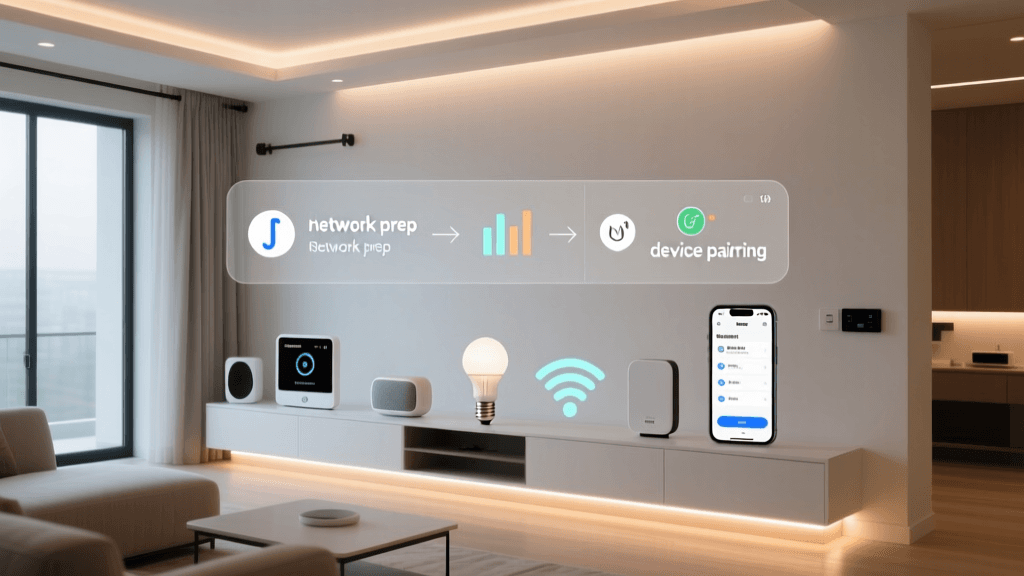
Once your hardware is provisioned, network preparation is critical for a seamless app experience. Smart home devices should ideally be segregated onto their own IoT Virtual Local Area Network (VLAN) or a dedicated guest SSID to prevent them from accessing your personal computers and NAS drives. If you use a router like the UniFi Dream Router or a pfSense firewall, you must enable an mDNS reflector (or Avahi daemon). Because the Companion App relies on mDNS to discover your server locally using the homeassistant.local:8123 address, an mDNS reflector ensures that your phone (on the main VLAN) can discover the server (on the IoT VLAN) without manual IP entry.
Installing and Pairing the Companion App
The Home Assistant Companion App is available on both the Apple App Store and the Google Play Store. Upon launching the app for the first time, you will be prompted to connect to your instance. If you are on the same local network and have mDNS properly configured, the app should automatically discover your server. If not, you can manually enter the local IP address (e.g., http://192.168.1.50:8123).
For remote access outside your home network, you have two primary options. The first is Nabu Casa Cloud Services, the official subscription service created by the founders of Home Assistant. For a monthly fee, it provides a secure, zero-configuration remote connection that also funds the development of the platform. The second option is setting up a Cloudflare Tunnel or using the Tailscale add-on, which are free but require more advanced networking knowledge to configure securely. According to the Home Assistant Companion App Documentation, using Nabu Casa is the most reliable method for ensuring push notifications and remote dashboard loading remain consistently fast without exposing your home network ports to the public internet.
iOS vs. Android: Platform Nuances
While the core dashboard experience is identical across platforms, the underlying operating systems handle background processes and permissions very differently. Understanding these nuances is vital for reliable automations.
- iOS Configuration: Apple is notoriously strict about background app activity. To ensure that location tracking and sensor updates work reliably, you must grant the Companion App 'Always Allow' for location services and enable 'Background App Refresh' in the iOS settings. Without these, Home Assistant will only update your phone's battery level or location when you actively open the app.
- Android Configuration: Android offers deeper system integration but requires you to disable battery optimization for the Companion App. If you do not exclude the app from your phone's aggressive battery saver (often found in Samsung or Xiaomi settings), the OS will kill the background process, halting Wi-Fi connection state updates and geofencing triggers.
Designing a Mobile-First Dashboard
The default Home Assistant dashboard is functional but not optimized for the narrow aspect ratio of a smartphone. To create a truly premium app experience, you should install the Home Assistant Community Store (HACS) and download custom frontend repositories. The most popular and effective card for mobile dashboards is the 'Mushroom' card suite, which provides clean, modern, and touch-friendly UI elements.
Pro-Tip: Design your mobile dashboard using a vertical stack layout. Place a row of Mushroom Chip cards at the very top for quick toggles (e.g., 'Goodnight' scene, 'Away' mode, weather summary). Below that, use a grid layout for room-specific controls, and anchor a media player card at the bottom for controlling Sonos or Spotify playback.
When configuring your dashboard via the UI editor or YAML, ensure you are utilizing the 'grid' and 'custom:layout-card' plugins to manage how elements wrap on different screen sizes. A well-designed mobile dashboard should require zero horizontal scrolling and prioritize the devices you interact with most frequently, such as smart locks, garage doors, and main lighting circuits.
Harnessing Device Sensors and Geofencing
Your smartphone is the most powerful sensor in your smart home. The Companion App can expose dozens of data points back to your controller, enabling context-aware automations. By navigating to the 'Companion App' settings menu on your phone, you can manage which sensors are pushed to the server.
Critical sensors to enable include:
- Geocoded Location & Zone Tracking: Allows Home Assistant to know when you enter or leave predefined zones (Home, Work, Grocery Store). This is the backbone of 'Arrive Home' automations that adjust the thermostat and turn on porch lights.
- SSID and Connection State: Triggers automations based on which Wi-Fi network your phone is connected to, which is often faster and more battery-efficient than GPS geofencing.
- Battery Level & Charging State: Useful for automations like turning off smart plugs when your phone reaches 100% charge, or sending a notification to your smartwatch if your phone battery drops below 10%.
- Bluetooth BLE Transmitter: This is a game-changer for indoor presence detection. By enabling the BLE transmitter on your phone and placing ESPHome Bluetooth proxies (built using $5 ESP32 microcontrollers) in various rooms, Home Assistant can track exactly which room you are in based on signal strength (RSSI). This allows for advanced automations, like turning off the music in the living room the moment you walk into the kitchen.
Visualizing Latency: Local vs. Cloud Control
One of the primary reasons installers and homeowners switch to a local controller is speed. The latency between tapping a button on your app and the physical light bulb turning on is drastically reduced when the command does not have to travel to a remote server and back. The chart below illustrates the average latency (in milliseconds) of a smart light toggle command across different connection methods.
As demonstrated, local LAN execution is nearly instantaneous. While Nabu Casa provides excellent performance for a cloud relay, third-party cloud hubs (which often route commands through AWS servers before hitting a local hub) can suffer from significant delays, especially during peak internet hours or cloud outages.
Advanced Notification Workflows
The Companion App elevates standard push notifications into interactive control panels. Using Home Assistant's automation engine, you can send 'Actionable Notifications' to your phone. For example, if a water leak sensor detects moisture under the kitchen sink, the app can push a critical alert that includes two buttons: 'Shut Off Main Valve' and 'Ignore'.
Configuring these requires defining the notification actions in your automation YAML and creating corresponding scripts to handle the mobile app's callback events. This turns your phone into an active security and maintenance hub, allowing you to respond to home emergencies from anywhere in the world with a single tap. According to the Home Assistant Installation Guide and official documentation, utilizing the mobile_app integration is the most secure way to handle these callbacks without exposing webhooks to the public internet.
Troubleshooting Connectivity and mDNS
Despite careful planning, app connectivity issues can arise. The most common complaint among new users is the app failing to connect when switching from cellular data to home Wi-Fi. This is often caused by NAT Loopback (or Hairpinning) limitations on consumer routers. If your router does not support NAT loopback, your phone will struggle to resolve your external domain name when you are inside your own network.
To solve this, the Companion App features a 'Home Network SSID' setting. By entering your home Wi-Fi SSID into the app's connection settings, you can instruct the app to automatically switch to your local IP address (e.g., http://192.168.1.50:8123) the moment it connects to your home network, bypassing the external domain entirely. This ensures lightning-fast dashboard loading and guarantees that your app remains functional even if your ISP or external DNS provider experiences an outage.
Conclusion
Configuring the Home Assistant Companion App is a multi-layered process that bridges the gap between complex backend server logic and user-friendly frontend interaction. By selecting the right hardware, segmenting your network, designing a mobile-optimized dashboard, and leveraging the deep sensor integrations unique to your smartphone, you create a smart home experience that is not only responsive but deeply personalized. Whether you are utilizing local BLE proxies for room-level presence or relying on Nabu Casa for secure remote access, the Companion App ensures your home is always at your fingertips, operating exactly the way you want it to.