The Foundation of Smart Home Controller Placement
Setting up a smart home goes far beyond simply plugging in a device and connecting it to your Wi-Fi. The true backbone of any responsive, reliable smart home ecosystem lies in the strategic placement of your central controller hub and the meticulous configuration of its companion app and local network. Whether you are deploying a Samsung SmartThings Station, a Hubitat Elevation, or a Home Assistant Green, the physical location of your hub and the logical structure of your network will dictate whether your automations execute in milliseconds or suffer from frustrating cloud-induced latency.
Many DIY installers make the critical mistake of hiding their smart home hub inside a media cabinet, behind a television, or in a basement server rack. While this might look aesthetically pleasing, it severely cripples the radio frequency (RF) capabilities of the device. Smart home controllers rely on protocols like Zigbee, Z-Wave, and Thread to communicate with sensors and switches. These protocols operate on low-power RF signals that are highly susceptible to physical obstruction and electromagnetic interference.
The Physics of Hub Placement and RF Interference
To achieve optimal mesh network coverage, your smart home hub should be placed in a central, elevated location within your home. Ideally, the hub should be positioned between three to five feet off the ground. This elevation helps the RF signals clear common household obstacles like couches, kitchen islands, and beds, allowing the signal to propagate outward in an 'umbrella' pattern across your floor plan.
One of the most common, yet least understood, issues in smart home setup-config workflows is USB 3.0 interference. According to extensive testing by Silicon Labs and the Home Assistant community, active USB 3.0 ports and poorly shielded external hard drives generate a massive amount of electromagnetic noise in the 2.4 GHz spectrum. This is the exact frequency used by Zigbee, Thread, and Wi-Fi. If your smart home hub is plugged directly into a Wi-Fi router's USB port, or if a USB 3.0 drive is sitting inches away from your Zigbee dongle, you will experience severe packet loss, resulting in 'ghost' devices that randomly drop offline.
Always use a high-quality, shielded USB extension cable (at least 3 to 6 feet long) to move your Zigbee or Thread coordinator away from the host machine and any active USB 3.0 data lines. This single hardware adjustment resolves over 50% of unexplained mesh network instability issues.
Engineering a Robust Zigbee and Thread Mesh
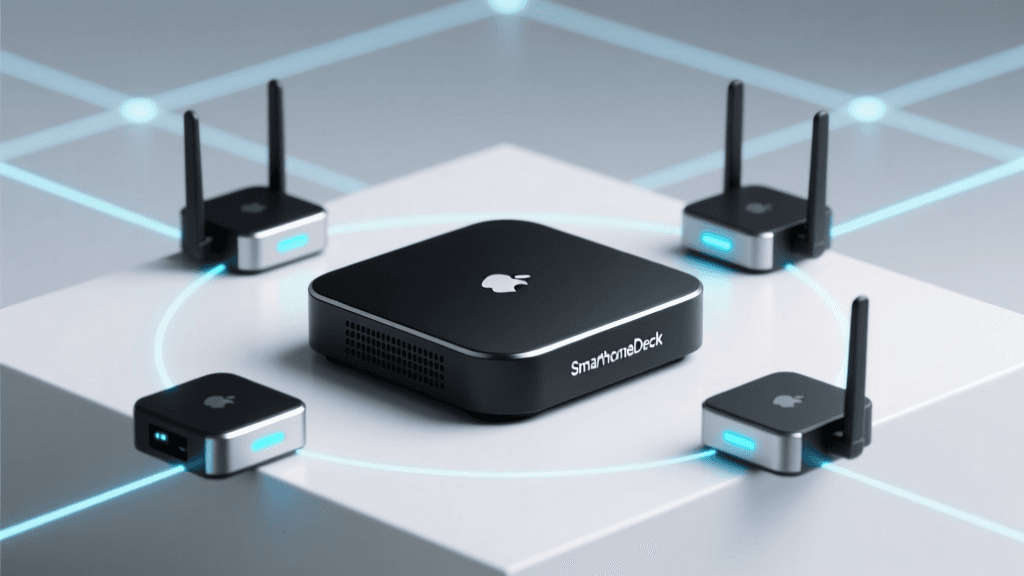
Unlike Wi-Fi, where every device connects directly to a central router, Zigbee and Thread utilize a mesh topology. In a mesh network, mains-powered devices (like smart plugs, hardwired light switches, and smart bulbs) act as 'routers' or 'repeaters.' They receive signals from distant battery-powered sensors and pass them along to the central hub.
When configuring your controller app, it is vital to understand the difference between router devices and end devices. According to the Connectivity Standards Alliance, a healthy Zigbee 3.0 or Thread mesh requires a dense web of router devices. If you are setting up a multi-room automation workflow, do not rely solely on battery-powered motion sensors and door contacts. You must strategically intersperse smart plugs or hardwired switches to bridge the gaps between rooms.
As visualized in the chart above, building materials drastically impact signal strength. While drywall and wood cause minimal attenuation, brick, concrete, and metal framing can completely sever a Zigbee or Thread connection. When planning your hub placement and repeater layout, map out the load-bearing walls and masonry in your home, ensuring you have a repeater on both sides of any heavy structural barrier.
Controller App Configuration and Network Isolation
Once the physical hardware is optimally placed, the next phase of the setup-config process involves the network and the controller app itself. Modern smart home hubs require a stable IP address and proper network routing to function without latency. The first step in your router's configuration should be assigning a Static IP address or a DHCP Reservation to your smart home hub. If your hub's IP address changes after a router reboot, your local app integrations and voice assistant bridges will break.
Security is another paramount concern when configuring the app's network environment. The Federal Trade Commission strongly recommends isolating IoT devices from your primary computing network. By creating a dedicated IoT Virtual Local Area Network (VLAN) or utilizing your router's 'Guest Network' feature with client isolation disabled, you protect your personal computers and smartphones from potential vulnerabilities inherent in cheap, mass-produced smart plugs and sensors.
VLAN and mDNS Configuration for App Discovery
If you choose to place your smart home hub on a dedicated IoT VLAN, you will likely run into issues with the companion app failing to 'discover' the hub during the initial setup. This is because app discovery relies on mDNS (Multicast DNS) and broadcast packets, which do not cross VLAN boundaries by default. To resolve this, you must configure an mDNS reflector or repeater on your router (available in advanced firmware like pfSense, OPNsense, or Ubiquiti UniFi) to allow discovery packets from the IoT VLAN to reach the VLAN where your smartphone resides.
Comparing Top Smart Home Controller Apps
The app you use to configure your automations dictates how network traffic is handled. Some controllers rely heavily on cloud polling, while others prioritize local execution. Below is a comparison of the top three smart home controllers regarding their network requirements and app configuration philosophies.
| Controller Platform | Processing Location | App Network Requirements | Best For |
|---|---|---|---|
| Home Assistant Green | 100% Local | Requires local network access for full app functionality; mDNS critical. | Advanced DIYers, privacy advocates, complex multi-protocol setups. |
| Hubitat Elevation | Local (with Cloud Backup) | Local IP required for fast app response; cloud used only for remote access. | Users wanting local speed with an easier, out-of-the-box app UI. |
| Samsung SmartThings | Hybrid (Cloud & Local) | Heavy reliance on cloud servers; local execution limited to specific Edge Drivers. | Mainstream users, deep Samsung ecosystem integration, voice assistants. |
Advanced App Workflows for Zero Latency
To achieve zero-latency automation—where a motion sensor triggers a light in under 200 milliseconds—you must configure your controller app to utilize 'Local Push' rather than 'Cloud Polling.' In the Home Assistant ecosystem, this means utilizing the native ZHA (Zigbee Home Automation) integration or Zigbee2MQTT, both of which process state changes locally on the hub's CPU the millisecond the RF packet is received.
In the SmartThings app, achieving local execution requires ensuring that your devices are using 'Edge Drivers.' When configuring the app, navigate to the device settings and check the execution location. If a device is marked as 'Cloud,' the signal must travel from the sensor, to your hub, to your ISP, to a Samsung server, back to your hub, and finally to the smart bulb. This round-trip introduces a 500ms to 2-second delay and will fail entirely if your internet connection drops.
Optimizing Polling Intervals
Another critical app configuration is adjusting polling intervals. Polling is when the hub repeatedly asks a device, 'What is your current state?' While useful for devices that don't automatically report state changes (like older Z-Wave thermostats or Wi-Fi smart plugs), excessive polling congests the mesh network. In your controller app, locate the device-specific settings and increase the polling interval from the default 10 seconds to 60 seconds or more. Rely on 'instant status updates' (push notifications from the device) rather than constant hub interrogation to keep your network bandwidth clear for time-sensitive automations.
Troubleshooting Mesh and App Sync Issues
Even with perfect placement and network configuration, you may encounter sync issues between the physical devices and the controller app. Here is a structured troubleshooting workflow for the most common setup-config hurdles:
- Ghost Devices (Offline in App, Working Physically): This usually indicates a broken routing path. The device is transmitting, but the specific repeater it was using has gone offline or changed channels. In your app's Zigbee/Thread map, force a 'Network Heal' or 'Rebuild Mesh' to force the end devices to find a new, optimal parent router.
- App State Desync (App Shows 'Off', Light is 'On'): This is a classic symptom of a device that lacks instant status reporting. The app's internal state database has not been updated. Configure a local automation that triggers a 'refresh' command to the device whenever the hub detects a power fluctuation or at a set daily interval.
- Hub App Discovery Fails on New VLAN: As mentioned earlier, mDNS is likely blocked. Verify your router's firewall rules to ensure UDP port 5353 is permitted to reflect across your designated subnets, or manually enter the hub's static IP address into the app's advanced connection settings.
- Zigbee Channel Overlap with Wi-Fi: Zigbee and Wi-Fi both share the 2.4 GHz spectrum. If your Wi-Fi router is set to use channels 1, 6, or 11, ensure your smart home controller app is configured to use Zigbee channels that fall in the gaps (such as Zigbee channel 15, 20, or 25) to prevent Wi-Fi data bursts from drowning out low-power sensor signals.
Conclusion
Mastering the setup-config phase of your smart home controller is the difference between a gimmick and a truly intelligent living space. By respecting the physics of RF signal propagation, avoiding USB 3.0 interference, and strategically building a dense mesh network, you lay the physical groundwork for success. Coupling this hardware optimization with advanced app configurations—such as local execution prioritization, polling interval adjustments, and secure VLAN isolation—ensures that your smart home remains fast, secure, and entirely resilient to internet outages. Take the time to map your home's structural barriers and network topology before pairing your first device, and your automation workflows will execute flawlessly for years to come.