Introduction to IoT Network Segmentation
The modern smart home is a complex ecosystem of interconnected devices, ranging from smart thermostats and lighting systems to security cameras and voice assistants. While these devices offer unprecedented convenience, they also introduce significant security vulnerabilities. Most consumer-grade IoT devices lack robust built-in security features, making them prime targets for cyberattacks. If a malicious actor compromises a cheap Wi-Fi smart bulb, they could potentially use it as a gateway to access your primary home network, intercepting sensitive data from your personal computers and smartphones.
To mitigate these risks, advanced DIY installers and security-conscious homeowners are turning to network segmentation. By creating a dedicated Virtual Local Area Network (VLAN) for IoT devices and utilizing a multi-protocol smart home hub as a secure bridge, you can isolate vulnerable devices while maintaining seamless automation workflows. According to the National Institute of Standards and Technology (NIST) IoT Cybersecurity Program, securing IoT devices requires a layered approach, with network segmentation being a foundational best practice to limit the blast radius of a potential breach.
This comprehensive guide will walk you through the process of selecting the right multi-protocol hub, configuring a dedicated IoT VLAN on prosumer networking gear, establishing strict firewall rules, and bridging Zigbee, Z-Wave, and Wi-Fi devices securely.
The Case for Network Segmentation in Smart Homes
A 'flat' network is one where every device—your laptop, your smart TV, your refrigerator, and your security cameras—shares the same subnet (e.g., 192.168.1.x). In this environment, devices can freely communicate with one another. While this makes device discovery easy, it is a security nightmare. The European Union Agency for Cybersecurity (ENISA) emphasizes that network segmentation is a primary defense mechanism against lateral movement by malware within IoT ecosystems.
By placing your smart home devices on a separate VLAN (for example, VLAN 20 with a subnet of 192.168.20.x), you create a digital moat. Your IoT devices can still access the internet to receive firmware updates and connect to necessary cloud services, but they are blocked from initiating connections to your main LAN where your NAS, personal computers, and phones reside.
Choosing Your Multi-Protocol Hub
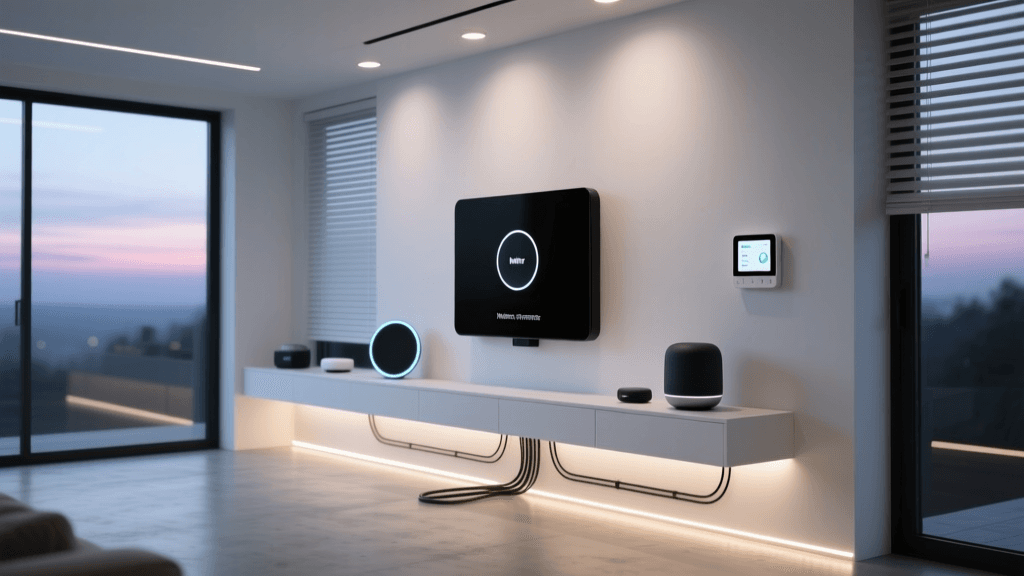
To bridge the gap between your isolated IoT VLAN, your main LAN, and various wireless protocols (Zigbee, Z-Wave, Thread), you need a robust multi-protocol hub. Relying solely on Wi-Fi devices is not recommended due to network congestion and power consumption. Instead, a dedicated hub handles local processing and acts as the central translator.
| Hub Model | Protocols Supported | Local Processing | Average Price | VLAN Compatibility |
|---|---|---|---|---|
| Home Assistant Yellow | Zigbee, Thread, Wi-Fi, Matter | Yes (Full) | $199 - $250 | Excellent (Native VLAN support) |
| Hubitat Elevation C-8 | Zigbee, Z-Wave, Wi-Fi, Matter | Yes (Full) | $149 - $179 | Good (Requires static IP & mDNS) |
| Apple TV 4K (3rd Gen) | Thread, HomeKit, Matter, Wi-Fi | Partial | $129 - $149 | Moderate (Requires Bonjour relay) |
| Samsung SmartThings Station | Zigbee, Thread, Matter, Wi-Fi | Cloud Dependent | $79 - $99 | Poor (Cloud reliance complicates VLANs) |
For the most control over VLAN routing and local automation, the Home Assistant Yellow (or a custom Intel NUC running Home Assistant OS with a Sonoff Zigbee 3.0 USB Dongle Plus) is the gold standard. It allows you to run local add-ons like an mDNS repeater, which is critical for cross-VLAN device discovery.
Step-by-Step: Creating an IoT VLAN
To set up your IoT VLAN, you will need a router or firewall that supports 802.1Q VLAN tagging. Prosumer equipment like the UniFi Dream Machine Pro (UDM-Pro), TP-Link Omada ER605, or a custom pfSense/OPNsense box is highly recommended. Standard ISP-provided routers generally do not support VLAN creation.
1. Define the VLAN and Subnet
Log into your network controller and create a new network. Assign it a VLAN ID (e.g., 20) and a unique subnet, such as 192.168.20.1/24. Ensure that 'Auto Scale Network' or equivalent features are disabled so you have manual control over the IP ranges.
2. Configure DHCP and DNS
Set up a DHCP server for the new VLAN. It is crucial to set the DNS server to your router's IP address or a trusted external DNS (like Quad9 or Cloudflare) rather than relying on the default ISP DNS, which often logs queries. Furthermore, force all DNS traffic (Port 53) originating from the IoT VLAN to route through your local DNS resolver (like Pi-hole or AdGuard Home) to block telemetry and tracking domains at the network level.
3. Enable IGMP Snooping and mDNS
Many smart home devices rely on multicast DNS (mDNS / Bonjour) to be discovered by mobile apps. Because mDNS broadcasts do not cross VLAN boundaries by default, you must enable an mDNS reflector or repeater on your router. On UniFi OS, this is found under Settings > Networks > Global Settings > Multicast DNS. Without this, your phone on the main LAN will not be able to discover the smart hub or cast to devices on the IoT VLAN.
Configuring the Hub Bridge
Once your VLAN is active, the next step is to onboard your multi-protocol hub and bridge the various wireless protocols.
Assigning the Hub to the IoT VLAN
If your hub connects via Ethernet (like the Home Assistant Yellow or Hubitat), you can either plug it into a switch port that is profiled to VLAN 20, or assign its MAC address to the IoT VLAN via DHCP reservation in your router. Assigning by MAC address is often easier to manage and document. Give the hub a static IP address (e.g., 192.168.20.10).
Bridging Zigbee and Z-Wave
Zigbee and Z-Wave operate on their own mesh networks (2.4 GHz and 908.42 MHz respectively) and are inherently isolated from your Wi-Fi network. The hub acts as the bridge, translating Zigbee/Z-Wave signals into IP traffic on your IoT VLAN. When pairing devices, ensure you are using a USB extension cable for your Zigbee/Z-Wave dongles to move them away from the interference generated by the hub's internal motherboard and USB 3.0 ports.
Integrating Wi-Fi IoT Devices
For Wi-Fi based devices (like Shelly relays, TP-Link Kasa plugs, or Wyze cameras), configure them to connect exclusively to an SSID that is mapped to your IoT VLAN (e.g., 'MyHome_IoT'). During the initial setup of these devices, your smartphone must also be temporarily connected to the IoT SSID to complete the local handshake and provisioning process.
Visualizing Network Traffic and Latency
One common concern among DIY installers is whether placing a smart hub on a separate VLAN and routing traffic through firewall rules will introduce noticeable latency in automation routines. Below is a visualization of average command latency comparing local hubs versus cloud-dependent hubs across flat and segmented networks.
As the data illustrates, the latency penalty for using a VLAN with a local processing hub (like Home Assistant or Hubitat) is negligible—often less than 10 milliseconds. The human brain cannot perceive a 7ms difference when turning on a light. Conversely, cloud-dependent hubs suffer from high latency regardless of network topology, as every command must travel to an external server and back.
Firewall Rules and Security Policies
Creating the VLAN is only half the battle; you must now enforce strict firewall rules to ensure the IoT VLAN cannot initiate connections to your main LAN. The Cybersecurity and Infrastructure Security Agency (CISA) strongly recommends implementing strict access control lists (ACLs) for IoT environments to prevent unauthorized lateral movement.
Rule 1: Block IoT to LAN
Create a rule that drops all traffic originating from the IoT Subnet (192.168.20.0/24) destined for your Main LAN Subnet (192.168.1.0/24). Place this rule above your general 'Allow All' outbound internet rules.
Rule 2: Allow Specific Hub Access
You will need your smartphone (on the main LAN) to access the hub's web interface and API. Create an exception rule above the block rule that allows traffic from your specific LAN IP (or a designated admin VLAN) to the Hub's IP (192.168.20.10) on specific ports (e.g., Port 8123 for Home Assistant, Port 8080 for Hubitat).
Rule 3: Allow Essential Services
IoT devices need access to the internet for NTP (Network Time Protocol) and DNS. Ensure the IoT VLAN is allowed to reach your router's IP on Port 53 (DNS) and Port 123 (NTP). Block all other local RFC1918 addresses to prevent the devices from communicating with other internal subnets.
Troubleshooting Common Hub and VLAN Issues
Even with meticulous planning, bridging protocols across VLANs can present unique challenges. Here are solutions to the most common issues encountered during setup.
Device Discovery Failing (mDNS Issues)
Symptom: Your hub is online, but your phone's companion app cannot find Wi-Fi smart plugs on the IoT VLAN.
Solution: Verify that your mDNS reflector is active. Some devices do not respond to mDNS queries from different subnets even with a reflector. In these cases, use the device's native IP address for integration within your hub (e.g., using the local LAN IP integration in Home Assistant) rather than relying on auto-discovery.
Zigbee Interference and Dropouts
Symptom: Zigbee sensors report delayed or missed states, especially when large files are downloaded on the Wi-Fi network.
Solution: Zigbee and 2.4 GHz Wi-Fi share the same frequency spectrum. You must separate their channels. Set your Wi-Fi 2.4 GHz network to Channel 1, 6, or 11. Then, configure your Zigbee hub to use Channel 11, 15, 20, or 25. This physical separation in the frequency band drastically reduces packet collisions and interference.
Hub Offline After VLAN Change
Symptom: The hub becomes completely unresponsive after moving it to the new IoT VLAN.
Solution: This is usually caused by the hub losing its default gateway or DNS server configuration. Connect a monitor and keyboard to the hub (if applicable) to check its network assignment, or access your router's DHCP lease table to verify it received the correct gateway IP (192.168.20.1). If it hardcoded its previous IP, you may need to perform a network reset on the hub via its physical interface.
Conclusion
Setting up an IoT VLAN and configuring a multi-protocol hub bridge is one of the most impactful upgrades you can make to your smart home infrastructure. While it requires a foundational understanding of networking concepts like subnets, DHCP, and firewall rules, the resulting security and stability are well worth the effort. By isolating vulnerable devices, optimizing wireless channels, and relying on local processing hubs, you create a smart home that is not only highly responsive but also resilient against modern cyber threats. Take the time to document your IP schemes, firewall rules, and VLAN IDs, and your smart home network will remain robust and secure for years to come.