Introduction to Smart Home Automation Architecture
Transitioning from manual device control to a fully automated smart home requires a fundamental shift in how you interact with your living space. The true power of smart home technology does not lie in turning on a light bulb via a smartphone app; it lies in creating an environment that anticipates your needs, adapts to your schedule, and optimizes energy consumption without requiring your active input. This is achieved through the meticulous configuration of scenes, routines, and schedules.
Whether you are utilizing Apple HomeKit, Google Home, or Amazon Alexa, understanding the underlying architecture of automation logic is critical for DIY installers and homeowners alike. A poorly configured routine can lead to conflicting device states, network congestion, and user frustration. Conversely, a well-architected automation workflow creates a seamless, invisible layer of convenience and security.
'The goal of smart home automation is not to give you more buttons to press, but to remove the need to press buttons altogether. Proper scene and routine configuration is the bridge between a connected house and a truly smart home.'
Defining the Core Concepts: Scenes vs. Routines vs. Schedules
Before diving into platform-specific configurations, it is essential to distinguish between the three core pillars of smart home automation logic. While often used interchangeably in casual conversation, they serve distinct technical functions within your hub's ecosystem.
1. Smart Scenes
A scene is a static snapshot of specific device states executed simultaneously. When you trigger a 'Movie Night' scene, the system sends a batch command to dim the Philips Hue living room lights to 20%, close the SwitchBot smart blinds, and power on the media center smart plug. Scenes do not have inherent logic or conditions; they simply execute a predefined list of commands upon a single trigger.
2. Smart Routines
A routine is a dynamic sequence of actions governed by conditional logic (If/Then statements). Routines utilize triggers such as voice commands, sensor data, geofencing, or time of day, and can include conditional checks. For example, a 'Good Morning' routine might trigger at 7:00 AM, but only execute the lighting and coffee maker actions if the local weather API reports that it is a weekday and your smartphone's geofence confirms you are still at home.
3. Smart Schedules
A schedule is a time-based subset of routines. Schedules rely strictly on chronological triggers, such as absolute time (e.g., 8:00 PM), solar events (e.g., 30 minutes before sunset), or recurring calendar events. Schedules are the backbone of passive energy management and security simulation.
Prerequisites for Reliable Automation Configuration
Before configuring complex multi-device routines, ensure your foundational network and hardware setup meets the following criteria:
- Local Processing Hubs: Whenever possible, use hubs that support local execution (e.g., Apple HomePod, Samsung SmartThings Station, or Home Assistant servers). Cloud-dependent routines suffer from latency and will fail during internet outages.
- Unified Network SSID: Ensure all 2.4GHz IoT devices and your primary smartphone are operating on the same logical network or VLAN with proper mDNS/Bonjour forwarding enabled to allow local discovery.
- Device Naming Conventions: Adopt a strict naming taxonomy (e.g., '[Room] - [Device Type] - [Location]'). A device named 'Living Room Lamp Left' is infinitely easier to map in complex routines than 'Hue Bulb 4'.
Platform-Specific Configuration Guides
Each major smart home ecosystem approaches routine creation with a slightly different user interface and logic engine. Below is a breakdown of how to configure high-impact routines across the big three platforms.
Apple HomeKit: Scene and Automation Mastery
Apple HomeKit excels in local processing and privacy-centric geofencing. To configure a robust routine in the Apple Home app:
- Navigate to the 'Automations' tab and select 'Create New Automation'.
- Choose your trigger. For a 'Leaving Home' security routine, select 'People Leave' and configure the geofence radius to 150 meters to prevent false triggers when simply taking out the trash.
- Add actions. Group your devices by room for bulk actions (e.g., 'Turn off all lights in the Kitchen').
- Pro-Tip: Utilize NFC Tags. You can program an NFC tag placed on your nightstand to trigger a 'Sleep' scene that locks your Yale Assure Lock, arms your security system, and sets your Ecobee thermostat to sleep mode, bypassing the need for voice commands late at night.
Google Home: Household Routines and Starter Blocks
Google Home utilizes a 'Starter' and 'Action' block system that is highly intuitive for multi-user households. Google's 'Household Routines' allow actions to trigger only when the last person leaves or the first person arrives.
- Open the Google Home app and tap 'Automations' > 'Add starter'.
- For an energy-saving schedule, select 'On a schedule' and choose 'Sunset' with a -15 minute offset to ensure exterior lighting activates before dusk.
- Under 'Add action', select 'Adjust home devices'. You can configure precise color temperatures here. Set your exterior lights to 2700K (warm white) to minimize light pollution and neighborhood glare.
- Pro-Tip: Use the 'And' condition in Google's advanced routines. For example: Trigger the 'Movie Time' scene via voice, but only if the living room TV is currently turned on.
Amazon Alexa: Hunches and Multi-Step Routines
Alexa offers the most granular control over third-party skill integrations and 'Hunches' (AI-driven predictive actions). Alexa's routine builder allows for sequential delays, which are crucial for devices that require time to boot or initialize.
- Open the Alexa app, go to 'More' > 'Routines' > 'Create Routine'.
- Set your trigger (e.g., 'Alexa, start my morning').
- Add a 'Wait' action. If your smart coffee maker takes 3 minutes to heat up, add a 3-minute delay before the routine triggers the smart plug that powers the blender.
- Pro-Tip: Enable 'Alexa Hunches'. If Alexa detects that you usually turn off the downstairs lights at 11 PM but they are still on at 11:30 PM, it can automatically execute the scene or send a push notification to your phone for confirmation.
Designing High-Impact Schedules for Energy Efficiency
One of the most compelling reasons to master routine creation is the potential for significant energy savings. According to the U.S. Department of Energy, smart thermostats that utilize automated scheduling and geofencing can save homeowners an average of 10% to 15% on heating and cooling costs annually. However, these savings are only realized if the schedules are configured correctly to match the home's thermal envelope and the occupants' actual routines.
HVAC and Smart Blind Synergy
Do not configure your HVAC system in a vacuum. Pair your smart thermostat schedules with automated window treatments. During summer months, create a schedule that closes south-facing and west-facing smart blinds (like the SwitchBot Curtain Rod 2) at 10:00 AM to block solar heat gain. This reduces the cooling load on your HVAC system, allowing you to raise the thermostat's daytime setpoint by 2 to 4 degrees without sacrificing indoor comfort.
Circadian Lighting Schedules
Beyond energy savings, automated lighting schedules can profoundly impact human biology. Configure your smart lighting scenes to mimic the natural progression of sunlight. Using bulbs capable of tuning white light (such as Philips Hue White Ambiance or Lutron Ketra), set a schedule that gradually shifts the color temperature from a cool, energizing 5000K at 8:00 AM to a warm, melatonin-friendly 2200K by 9:00 PM. This requires creating multiple time-based triggers within a single daily lighting routine.
Cross-Platform Compatibility and the Matter Standard
Historically, creating routines that spanned multiple ecosystems (e.g., triggering a Ring camera to record when a Yale lock is unlocked via Apple HomeKit) required clunky third-party middleware like IFTTT. The introduction of the Matter smart home standard, governed by the Connectivity Standards Alliance (CSA), is fundamentally changing how routines are configured across different platforms.
Matter allows devices to be controlled locally by multiple fabric controllers simultaneously. This means you can configure a security routine in Apple HomeKit while another household member configures a lighting routine in Google Home, without the devices fighting for network priority or requiring cloud-based bridging. When setting up new hardware, always prioritize Matter-over-Thread devices, as they offer the lowest latency for sensor-triggered routines, ensuring that a motion-activated lighting scene fires in milliseconds rather than seconds.
Troubleshooting Common Routine Failures
Even meticulously planned routines can fail due to network variables, firmware bugs, or conflicting logic. Below is a troubleshooting matrix for the most common automation issues encountered during setup and configuration.
| Issue Symptom | Probable Cause | Configuration Solution |
|---|---|---|
| Routine triggers 10-30 seconds late | Cloud processing latency or weak Wi-Fi signal on IoT device. | Migrate to a local-processing hub (e.g., HomePod, SmartThings) or add a Thread/Matter border router to improve local mesh routing. |
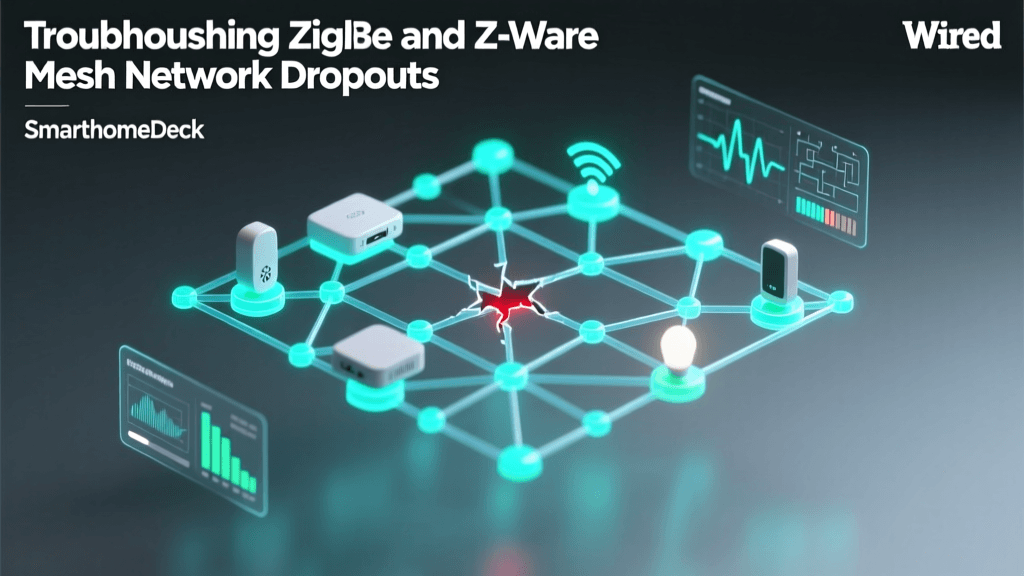
| Scene executes, but one device fails to respond | Z-Wave/Zigbee mesh routing dead zone or device power cycling. | Add a smart plug or hardwired switch halfway between the hub and the failing device to act as a mesh repeater. |
| Geofence routine triggers while user is still home | Smartphone GPS drift or aggressive OS battery optimization killing location services. | Disable battery optimization for your smart home app. Increase the geofence boundary radius to 200 meters. |
| Conflicting actions (e.g., lights turning off immediately after turning on) | Overlapping schedules or motion sensor timeout set too short. | Audit all routines for duplicate triggers. Extend motion sensor 'no-motion' timeout to at least 5 minutes for living spaces. |
| Voice trigger fails to recognize custom phrase | Phonetic spelling issues or conflict with native assistant commands. | Use distinct, multi-word phrases (e.g., 'Activate Cinema Mode' instead of 'Movie'). Avoid using words that sound like native wake words. |
Advanced Automation: Sensor Logic and Multi-User Presence
For DIY installers looking to push beyond basic time-based schedules, integrating environmental and occupancy sensors is the next logical step. Relying solely on motion sensors (PIR) for lighting routines often leads to the 'dark room' problem, where the lights turn off while you are sitting still reading a book.
To solve this, configure your routines using a combination of PIR motion sensors and mmWave (millimeter-wave) presence sensors, such as the Aqara FP2. mmWave sensors can detect micro-movements like breathing, allowing you to create a routine condition: 'Keep lights on if PIR detects motion OR mmWave detects human presence.'
Furthermore, multi-user presence detection requires careful logic mapping. If you live in a multi-person household, an 'Away' routine should only trigger when the last person's geofence leaves the perimeter. Conversely, a 'Welcome Home' routine should trigger upon the first arrival. Both Apple HomeKit and Google Home natively support this 'First to Arrive / Last to Leave' logic, but it must be explicitly selected during the geofence setup phase; otherwise, the system will default to triggering the routine every time any single user crosses the boundary.
Conclusion
Mastering the configuration of scenes, routines, and schedules transforms a disparate collection of smart gadgets into a cohesive, intelligent ecosystem. By understanding the distinct differences between static scenes and conditional routines, leveraging local processing hubs, and utilizing advanced sensor logic, you can create a home environment that is secure, energy-efficient, and perfectly tailored to your daily life. Take the time to map out your automation logic on paper before programming, ensure your network foundation is solid, and iterate on your routines as your household's needs evolve.