The Evolution of Smart Home Control: Beyond the App
When you first install smart devices, the novelty of controlling your lights or thermostat from your smartphone is exciting. However, manually opening an app to turn off the living room lights or adjust the HVAC system quickly becomes tedious. The true power of a smart home lies in automation—the ability of your devices to anticipate your needs and react to environmental changes without manual intervention. Transitioning from manual control to automated environments requires a solid understanding of scenes, routines, and schedules. This guide will walk you through the technical setup, platform comparisons, and advanced logic required to build a seamless, automated smart home ecosystem.
Defining the Terminology: Scenes vs. Routines vs. Schedules
Before diving into configuration, it is crucial to understand the distinct differences between the three core pillars of smart home automation. While often used interchangeably by marketing teams, they serve entirely different logical functions in your smart home hub.
- Scenes: A scene is a static snapshot of device states. When triggered, a scene sets multiple devices to specific predefined levels simultaneously. For example, a "Movie Night" scene might dim your Philips Hue bulbs to 20%, close your Lutron Serena shades, and power on your home theater receiver. Scenes do not have triggers; they are activated manually or by other routines.
- Routines: A routine is a dynamic sequence of actions initiated by a specific trigger. Triggers can be voice commands, sensor states, device statuses, or geofencing events. A routine can contain a scene within it, but it also includes conditional logic (e.g., "If motion is detected AND it is after sunset, turn on the hallway lights").
- Schedules: A schedule is a strictly time-based routine. It relies on the internal clock of your hub or cloud server to execute actions at specific times or on specific days of the week, such as turning on the coffee maker smart plug every weekday at 6:30 AM.
Platform Ecosystems: Where to Build Your Automations
The platform you choose to host your automations will dictate the complexity, speed, and reliability of your routines. Local execution (processing data on a hub inside your home) is vastly superior to cloud execution (sending data to a remote server and back), as it eliminates latency and ensures your automations work even if your internet connection drops.
| Platform | Local Execution | Hub Required | Best Use Case | Complexity |
|---|---|---|---|---|
| Apple HomeKit | Yes (via Home Hub) | Apple TV / HomePod | Privacy-focused, fast local routines | Low to Medium |
| Samsung SmartThings | Yes (via Edge Drivers) | SmartThings Station / Hub | Complex sensor logic, Z-Wave/Zigbee | Medium to High |
| Amazon Alexa | Limited (Mostly Cloud) | Echo (for some local) | Voice-triggered routines, broad compatibility | Low |
| Google Home | No (Cloud-based) | Google Nest Hub | Simple schedules, Google Assistant integration | Low |
Step-by-Step Guide: Creating Your First Multi-Device Routine
Let us build a comprehensive "Good Morning" routine. This routine will transition your home from a sleeping state to an active state, utilizing lighting, climate control, and audio devices. For this example, we will use the Samsung SmartThings ecosystem, though the logic applies similarly to Apple HomeKit.
Step 1: Define the Trigger
Open your SmartThings app and navigate to the "Routines" tab. Tap the "+" icon to create a new routine. For the trigger, you have a few options. While a time-based schedule (e.g., 7:00 AM) is reliable, a sensor-based trigger is more dynamic. Select Device Status and choose a motion sensor (like the Aeotec MultiSensor 7) placed in your hallway. Set the condition to "When motion is detected." To prevent false triggers at night, add a secondary condition: Time -> "Between 6:00 AM and 9:00 AM."
Step 2: Configure the Lighting Scene
Under the "Actions" section, select your Philips Hue bridge. Instead of controlling individual bulbs, select the pre-configured "Morning Energize" scene. This ensures your lights snap to a cool, bright white (4000K) at 80% brightness, which is scientifically proven to help regulate circadian rhythms and promote wakefulness.
Step 3: Adjust Climate and Audio
Add another action for your Ecobee SmartThermostat. Set the action to "Change Comfort Setting" to "Awake," which adjusts the temperature to your preferred daytime level (e.g., 72°F). Finally, add an action for your Sonos speaker in the kitchen. Set it to "Play" and select your preferred morning news playlist or smart home briefing. Save the routine and test it by walking past the sensor during the allowed time window.
Advanced Triggers: Geofencing and Sensor Logic
To truly automate your home, you must move beyond simple schedules and leverage contextual data. Geofencing uses the GPS location of your smartphone to create a virtual perimeter around your home. When your phone crosses this boundary, it triggers "Arrive" or "Leave" routines.
For a robust "Leave Home" security routine, configure your hub to trigger when the last registered user's phone exits the 150-meter geofence radius. The actions should include: locking all smart deadbolts (e.g., Yale Assure Lock 2), arming your security system, closing the garage door, and initiating a "Vacation" lighting schedule that randomizes bulb activation to simulate occupancy. Conversely, an "Arrive" routine can disarm the security system, unlock the front door, and adjust the HVAC system to your comfort profile.
Contact sensors also provide powerful logical triggers. By placing an Aqara Door and Window Sensor on your main entrance, you can create a routine that turns on the foyer lights only if the door is opened and the ambient lux sensor reads below 50 lumens, ensuring lights do not turn on unnecessarily during bright afternoons.
Visualizing the ROI of Smart Schedules and Automations
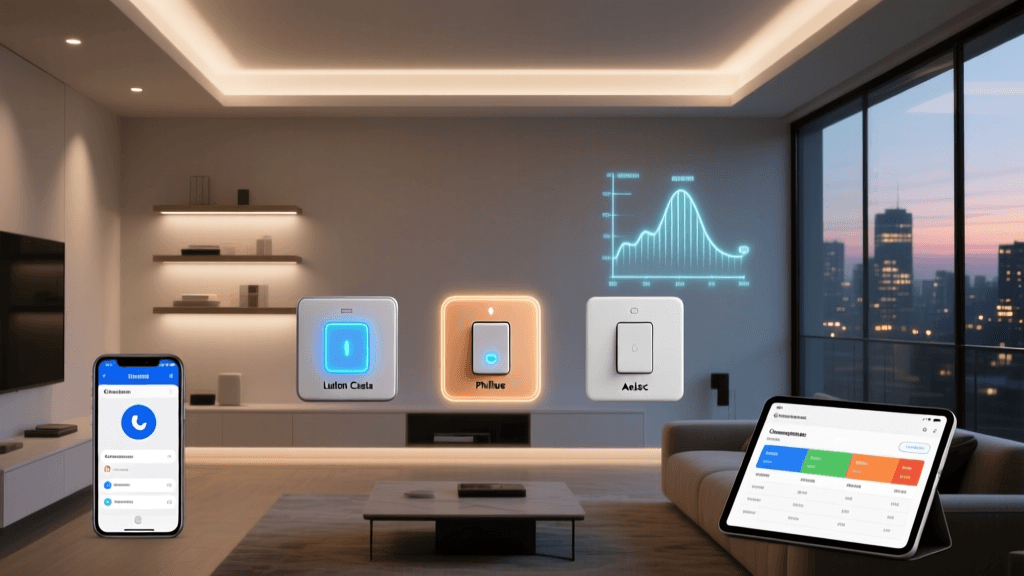
One of the most compelling reasons to invest time in configuring schedules and routines is the measurable return on investment through energy savings. By automating your HVAC and lighting systems, you eliminate phantom loads and optimize energy consumption based on actual occupancy rather than guesswork.
According to the EPA Energy Star program, properly scheduled smart thermostats can save homeowners approximately 8% on heating and cooling bills annually. Furthermore, the Department of Energy highlights that comprehensive Home Energy Management Systems (HEMS) that integrate lighting schedules and smart plug automations can significantly reduce overall residential energy footprints by eliminating standby power consumption.
Estimated Annual Savings by Automation Type
Real-World Automation Blueprints for DIY Installers
To help you design your own setup, here are three advanced automation blueprints that solve common household friction points.
Blueprint 1: The Cinematic Movie Night
- Trigger: Voice command ("Start Movie Night") or physical smart button press (e.g., Flic 2 Button mounted on the coffee table).
- Actions: Dim living room Philips Hue bulbs to 10% warm amber. Turn off the kitchen and hallway lights completely. Send an IR/RF command via a Broadlink RM4 Pro to power on the TV and soundbar. Close the smart blinds to eliminate screen glare.
- Exit Routine: When the TV smart plug detects power draw dropping below 20W (indicating the TV is off), slowly fade the living room lights back to 50% over 30 seconds to prevent eye strain.
Blueprint 2: The Climate Pre-Cool / Pre-Heat
- Trigger: Geofencing (First user enters the 5-mile radius) AND Time (Between 2:00 PM and 7:00 PM).
- Actions: Change Ecobee thermostat from "Away" to "Home" comfort setting. Turn on the ceiling fan in the living room via a Bond Bridge to assist with air circulation before the occupants physically arrive, ensuring the home is perfectly tempered at the moment of entry.
Blueprint 3: The Laundry Notification
- Trigger: Smart Plug (monitoring the washing machine) power draw drops below 5W for 3 consecutive minutes.
- Actions: Send a push notification to all registered users. Announce via all Sonos and Echo speakers in the house: "The washing machine has finished its cycle." If no one acknowledges the notification via a virtual switch within 30 minutes, flash the kitchen pendant lights three times as a visual reminder.
Troubleshooting Common Routine Failures
Even the most meticulously planned automations can fail. Understanding the underlying architecture of your network and hub is essential for troubleshooting.
- Cloud Latency and Timeouts: If your routines rely on cloud servers (common with Wi-Fi-only devices like TP-Link Kasa or older LIFX bulbs), internet outages or server downtime will break your automations. Solution: Migrate critical routines to a local hub like SmartThings or Home Assistant, and prioritize Zigbee or Thread devices that communicate locally.
- Zigbee Mesh Congestion: Zigbee networks rely on a mesh topology. If you place a low-power sensor too far from a router (a mains-powered device like a smart plug or light bulb), the signal may drop, causing sensor-based routines to fail. Solution: Ensure you have enough mains-powered Zigbee devices distributed throughout the home to act as signal repeaters.
- Geofence Inconsistencies: Smartphone operating systems (iOS and Android) aggressively manage background location services to save battery, which can cause geofence triggers to fire late or not at all. Solution: Ensure your smart home app has "Always Allow" location permissions and that background app refresh is enabled. Alternatively, use a dedicated GPS tracker in your vehicle or integrate Life360 for more reliable presence detection.
Cost Breakdown: Building a Routine-Ready Home
Setting up a robust automation ecosystem requires an upfront investment in compatible hardware. Below is an estimated cost breakdown for a starter kit designed to handle advanced routines, schedules, and sensor-based logic in a standard 3-bedroom home.
| Device Category | Recommended Product | Quantity | Estimated Cost |
|---|---|---|---|
| Smart Hub | Samsung SmartThings Station / Hub v3 | 1 | $80 - $130 |
| Smart Lighting | Philips Hue White & Color Ambiance Starter Kit | 2 | $200 - $250 |
| Climate Control | Ecobee SmartThermostat Premium | 1 | $220 - $250 |
| Sensors | Aqara Door/Window & Motion Sensor Kit | 4 | $100 - $140 |
| Smart Plugs | Eve Energy (Matter/Thread compatible) | 3 | $120 - $150 |
| Total Estimated Investment | $720 - $920 | ||
Conclusion
Mastering scene routine and schedule creation is the defining factor between a house filled with remote-controlled gadgets and a truly intelligent smart home. By leveraging local execution hubs, combining multi-sensor logic, and utilizing geofencing, you can create an environment that seamlessly adapts to your lifestyle while reducing energy waste. Start with simple time-based schedules, gradually introduce sensor-based triggers, and eventually build complex, conditional routines that handle the minutiae of your daily life. The initial configuration takes time and patience, but the resulting convenience, security, and energy efficiency are well worth the effort.