Introduction to Smart Hub App Configuration
The transition from a collection of disparate smart devices to a cohesive, automated smart home relies entirely on the central controller and its companion app. While early smart home setups depended heavily on cloud-based servers—introducing latency, privacy concerns, and vulnerability to internet outages—modern DIY installers and homeowners are increasingly pivoting toward local-first smart home controllers. Mastering your smart hub app configuration and underlying network setup is the difference between a frustrating, laggy smart home and a seamless, instantaneous automation ecosystem.
In this comprehensive guide, we will explore the technical nuances of configuring multi-protocol hubs, optimizing your local network for IoT traffic, building resilient Zigbee and Z-Wave meshes, and designing intuitive app dashboards. Whether you are deploying a Hubitat Elevation C-8, a Home Assistant Green, or a Samsung SmartThings Station, the principles of robust network segmentation and local app configuration remain universally critical.
Choosing the Right Hub for Local vs. Cloud Control
Before diving into app configuration, it is essential to understand the hardware processing your automation logic. Hubs generally fall into two categories: cloud-dependent and local-processing. Cloud-dependent hubs route every command through external servers, while local-processing hubs execute automations directly on the device's internal processor, ensuring sub-100ms latency and continued operation during internet outages.
| Hub Model | Avg. Cost | Supported Protocols | Local Processing | App Ecosystem |
|---|---|---|---|---|
| Hubitat Elevation C-8 | $159 | Zigbee 3.0, Z-Wave 800 | Yes (Native) | Advanced (Rule Machine) |
| Home Assistant Green | $115 | Matter, Thread (via dongle) | Yes (Native) | Highly Customizable |
| SmartThings Station | $139 | Zigbee, Thread, Matter | Hybrid (Edge Drivers) | Consumer-Friendly |
For users prioritizing speed and privacy, local-processing hubs are the gold standard. However, the companion app configuration for these hubs requires a deeper understanding of networking and automation logic compared to plug-and-play cloud alternatives.
Step-by-Step Hub and Network Setup
1. Network Segmentation and IP Reservation
The foundation of a stable smart home app experience is a properly configured local network. IoT devices are notorious for having fragile Wi-Fi stacks and limited security protocols. According to the NIST IR 8259 guidelines on IoT security, isolating IoT devices from your primary computing network is a fundamental best practice to prevent lateral movement in the event of a device compromise.
To achieve this, configure a dedicated IoT VLAN (Virtual Local Area Network) or a separate 2.4GHz SSID on your router. When setting up this SSID, adhere to the following parameters:
- Band: 2.4GHz only. Most smart home devices lack 5GHz radios.
- Security: WPA2-AES. Avoid WPA3 or WPA2/WPA3 transitional modes, as legacy IoT chips often fail to handshake with newer security protocols.
- Client Isolation: Disable AP/Client isolation. Your smart home hub app needs to discover and communicate with devices via local multicast/broadcast traffic (mDNS/SSDP).
Furthermore, assign a static IP address or a DHCP reservation to your smart hub. If your hub's IP address changes after a router reboot, the companion app will lose local connectivity, forcing a fallback to slower cloud polling or resulting in a complete 'Hub Offline' error.
2. Zigbee and Z-Wave Mesh Optimization
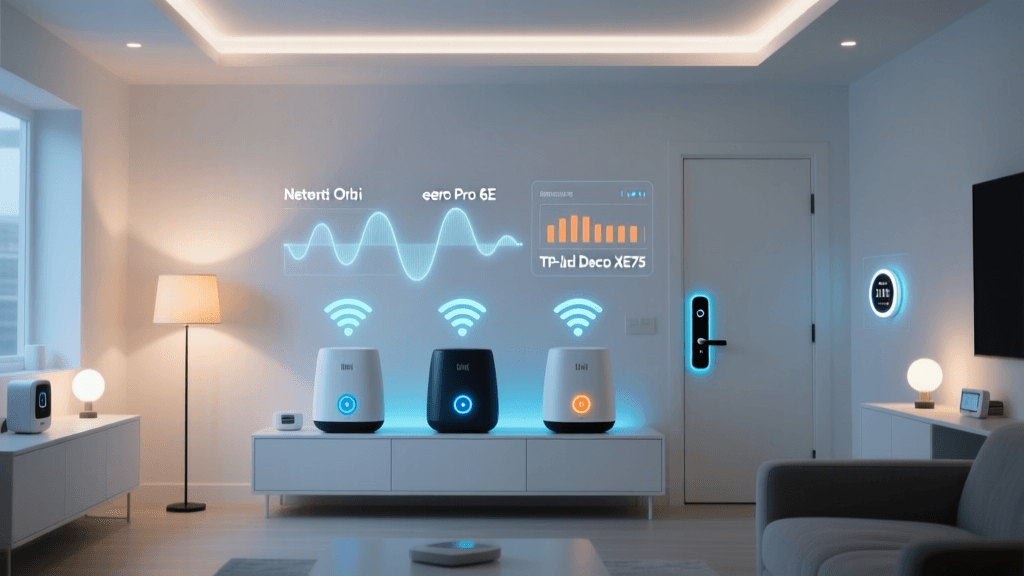
While Wi-Fi handles cameras and high-bandwidth devices, Zigbee 3.0 and Z-Wave Plus V2 form the low-power mesh network for sensors, locks, and switches. App configuration for these protocols begins with physical placement and channel selection.
Zigbee operates on the 2.4GHz spectrum, directly competing with Wi-Fi and Bluetooth. To prevent packet loss—which manifests in the app as delayed or failed device responses—you must separate your Wi-Fi and Zigbee channels. If your Wi-Fi router is set to channel 1, configure your Zigbee hub to channel 15 or 20. If Wi-Fi is on channel 6, use Zigbee channel 25.
Additionally, USB 3.0 ports and cables emit significant electromagnetic interference in the 2.4GHz band. If you are using a USB-based Zigbee coordinator (like the Home Assistant SkyConnect or Sonoff Zigbee 3.0 USB Dongle Plus), always use a 3-to-6-foot USB 2.0 extension cable to move the dongle away from the hub's motherboard and into an open space. This single hardware adjustment can increase your mesh range by up to 40% and drastically reduce app timeout errors.
App Configuration: Dashboards and Automations
Once the network and mesh are stable, the focus shifts to the companion app. A well-configured app dashboard should prioritize contextual control and local execution.
Designing Contextual Dashboards
Avoid the trap of creating a single, massive dashboard with every device in your home. Instead, use your hub's app to create room-specific or function-specific dashboards. For example, a 'Morning Routine' dashboard should only feature the coffee maker switch, bedroom lights, and thermostat. Utilize variables and conditional tiles within the app to hide devices that are irrelevant to the current time of day or occupancy state.
Local Execution and Automation Logic
When building automations in the app (using tools like Hubitat's Rule Machine or Home Assistant's Automations UI), always verify that the automation is flagged for local execution. In hybrid ecosystems like SmartThings, this often requires installing custom 'Edge Drivers' via the SmartThings CLI to ensure that a motion sensor triggering a light bulb does not require a round-trip to the cloud.
Understand the difference between State Triggers and Event Triggers in your app logic:
- Event Trigger: Fires once the moment a device changes state (e.g., 'Button pushed'). This is ideal for instant actions.
- State Trigger: Evaluates a continuous condition (e.g., 'Temperature is above 72°F'). This is ideal for climate control and monitoring.
As illustrated in the chart above, local-processing hubs reduce automation latency by up to 90%. This is particularly noticeable in motion-triggered lighting and smart lock auto-unlocking, where sub-100ms response times feel instantaneous to the user, while 600ms+ cloud delays feel sluggish and unreliable.
Advanced App Integrations: Matter and Thread
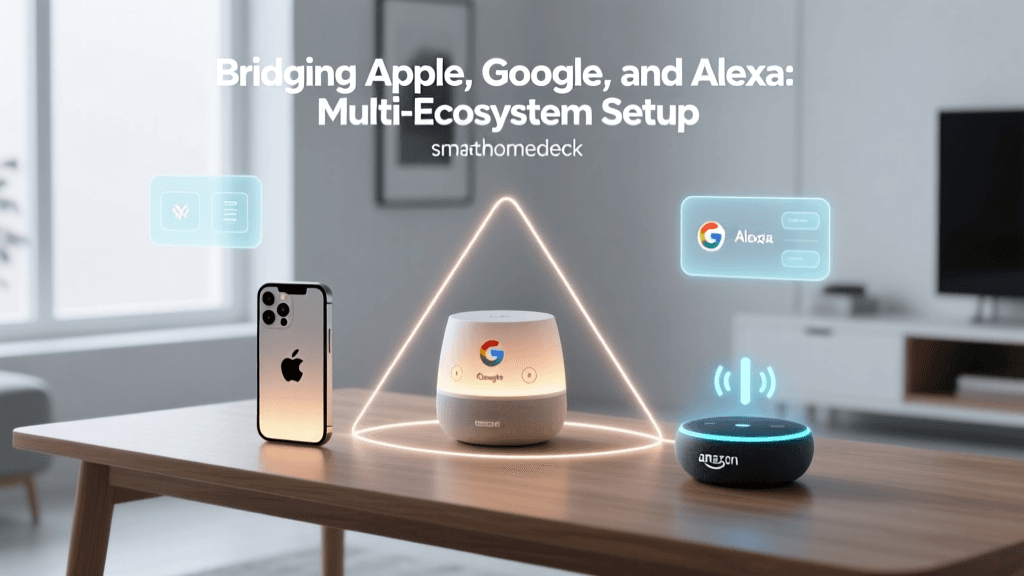
The smart home landscape is rapidly evolving with the introduction of Matter and Thread. According to the Connectivity Standards Alliance (CSA), Matter is an application-layer protocol designed to unify device communication across different ecosystems, while Thread provides a low-power, IPv6-based mesh networking layer.
Configuring Matter devices within your hub app requires a 'Matter Commissioner'—a role your smart hub app plays when scanning a device's QR code. During setup, ensure your smartphone is connected to the exact same 2.4GHz SSID as your hub to facilitate the initial IPv6 handshake. If the app fails to discover the Matter device, temporarily disable your router's IGMP Snooping or enable mDNS bridging between your IoT VLAN and your primary VLAN.
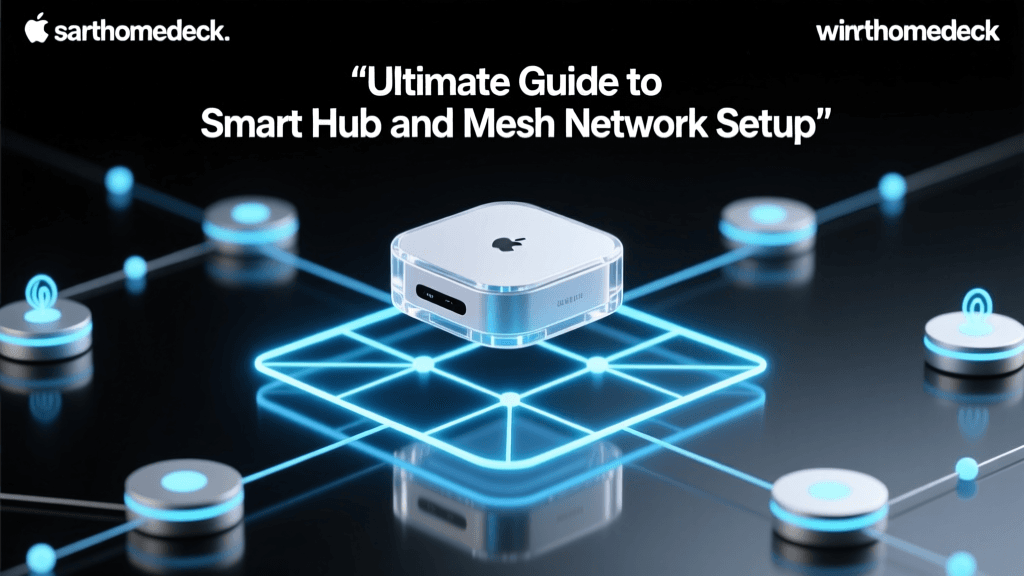
For Thread devices, your hub must act as a Thread Border Router (or you must have an Apple TV 4K or Nest Hub on the network). Thread devices do not connect to your Wi-Fi; they connect to the Thread mesh and use the Border Router to bridge traffic to your hub app via Ethernet or Wi-Fi. In your hub's app settings, always check the 'Thread Network' diagnostics page to verify that your Border Router has an active, preferred route and that the Thread mesh topology shows strong signal links (LQI > 200) between nodes.
Troubleshooting Common App and Hub Sync Issues
Even with meticulous setup, DIY installers will encounter sync issues between the physical devices and the companion app. The CISA IoT Security Guidelines emphasize the importance of maintaining device firmware and monitoring network health to ensure operational resilience. Here is how to troubleshoot the most common app configuration failures:
1. Device Shows 'Offline' in App, But Works Manually
This usually indicates a mesh routing failure rather than a device failure. The device is physically operating, but the hub cannot receive its status update. Open your hub's Zigbee or Z-Wave map in the app. Look for devices with no parent-child lines. To fix this, add a mains-powered smart plug halfway between the hub and the offline device to act as a mesh repeater, then initiate a 'Mesh Heal' or 'Network Repair' from the app's settings menu.
2. App Automations Failing to Trigger
If an automation fails, check the app's event log. A common culprit is 'condition bouncing.' For example, if an automation is set to turn on a fan when humidity exceeds 60%, but the sensor fluctuates between 59% and 61% rapidly, the hub's logic engine may lock the automation to prevent spam. Configure a 'hysteresis' or delay in your app logic (e.g., 'Humidity > 60% for 2 minutes') to stabilize the trigger.
3. Hub App Disconnects on Local Network
If your app frequently switches from 'Local' to 'Cloud' status, your router may be aggressively dropping multicast packets. Ensure that IGMP Snooping is properly configured or disabled on your IoT VLAN, and verify that your hub's IP address is reserved in the DHCP server. Additionally, check the hub's internal temperature via the app's diagnostic page; overheating can cause the hub's internal Wi-Fi or Ethernet controller to throttle or crash.
Conclusion
Mastering smart home controller and app configuration is an ongoing process of refinement. By prioritizing local processing, segmenting your network to protect against interference and security threats, and understanding the underlying physics of Zigbee, Z-Wave, and Thread meshes, you can build a smart home that is both incredibly fast and rock-solid reliable. Take the time to properly configure your IP reservations, separate your 2.4GHz channels, and design contextual app dashboards. The result is a truly intelligent home that responds instantly to your needs, completely independent of external cloud servers.