The Walled Garden Dilemma in Smart Homes
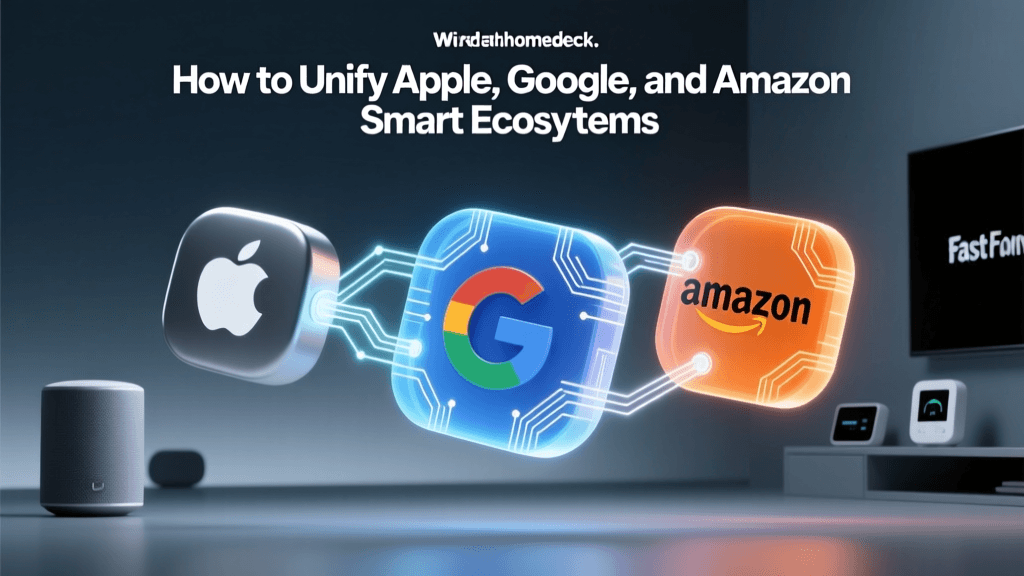
Building a smart home often feels like navigating a minefield of incompatible ecosystems. You might prefer Apple HomeKit for its privacy and sleek interface, but the smart lock you want only supports Amazon Alexa. Or perhaps you rely on Google Home for its superior voice recognition, but your favorite hardwired lighting system is exclusively a Zigbee-based mesh network. This fragmentation forces homeowners into choosing between limited device selections or managing three separate apps just to turn off the lights.
The ultimate solution to this multi-ecosystem headache is Home Assistant. By deploying a local, open-source home automation hub, you can aggregate devices from virtually any protocol—Zigbee, Z-Wave, Wi-Fi, Bluetooth, and the new Matter standard—and bridge them back out to Apple, Google, and Amazon simultaneously. This guide provides a comprehensive, hands-on walkthrough for setting up a unified smart home hub that breaks down walled gardens while maintaining local control and lightning-fast response times.
Essential Hardware for a Unified Hub
To achieve seamless multi-ecosystem integration, you need reliable hardware that can handle local processing, multiple radio frequencies, and continuous network uptime. Relying on a Raspberry Pi is no longer recommended due to SD card corruption and supply chain inconsistencies. Instead, dedicated smart home appliances offer vastly superior stability.
| Component | Recommended Product | Estimated Cost | Role in Setup |
|---|---|---|---|
| Hub / Server | Home Assistant Green | $99.00 | Core processing, runs HA OS, manages integrations. |
| Zigbee Coordinator | Sonoff Zigbee 3.0 USB Dongle Plus (P-Version) | $25.00 | Creates local Zigbee mesh network for sensors and switches. |
| USB Extension Cable | 3-foot USB 2.0 Male-to-Female Extension | $8.00 | Prevents USB 3.0 interference with 2.4GHz Zigbee signals. |
| Thread Border Router | Apple TV 4K (3rd Gen) or Nest Hub Max | $129 / $229 | Routes Matter/Thread IPv6 traffic to your local network. |
| Managed Switch (Optional) | TP-Link TL-SG108E (Easy Smart) | $40.00 | VLAN tagging and IGMP snooping for IoT network isolation. |
Investing roughly $150 to $200 in this foundational hardware will save you hundreds of dollars in proprietary hubs (like the Philips Hue Bridge or Aqara Hub) while giving you total data sovereignty.
Step 1: Network Preparation and mDNS Configuration
Before plugging in your Home Assistant Green, you must prepare your local network. Multi-ecosystem integration relies heavily on mDNS (Multicast DNS), which operates on UDP port 5353. Apple HomeKit, Google Cast, and Alexa local discovery all use mDNS to find devices on your network.
VLANs and Multicast Routing
For security, many advanced users place IoT devices on a separate VLAN (Virtual LAN). However, mDNS broadcasts do not cross VLAN boundaries by default. If your Home Assistant server is on your main network and your smart plugs are on an IoT VLAN, Apple HomeKit will not discover the HomeKit Bridge.
- Solution A (Beginner): Keep Home Assistant and all smart devices on the same flat L2 network (same subnet, e.g., 192.168.1.x).
- Solution B (Advanced): Use an mDNS reflector/repeater. If you use a Ubiquiti UniFi router, enable the 'Multicast DNS' feature in the UniFi Network Application under Settings > Networks > [Your Network] > Advanced. For pfSense/OPNsense users, install the Avahi daemon package to reflect mDNS traffic across interfaces.
Additionally, ensure that IGMP Snooping is enabled on your managed switches to prevent multicast floods from overwhelming your network, which can cause severe latency in voice assistant responses.
Step 2: Installing Home Assistant and Zigbee Integration
Connect the Home Assistant Green to your router via Ethernet, plug it into power, and navigate to homeassistant.local:8123 on your computer. Follow the onboarding wizard to create your admin account, set your home location (crucial for sun-based automations), and configure your time zone.
Setting Up the Zigbee Mesh
Zigbee remains the gold standard for low-power sensors, smart plugs, and hardwired switches. To integrate Zigbee devices without proprietary hubs, we use the ZHA (Zigbee Home Automation) integration or Zigbee2MQTT.
For this multi-ecosystem build, we recommend ZHA for its native UI integration and ease of use. Plug your Sonoff Zigbee Dongle into the USB 2.0 extension cable, and plug that into the Home Assistant Green. This three-foot physical separation is mandatory; the USB 3.0 ports on modern servers emit broadband noise that completely blinds the 2.4GHz Zigbee antenna, resulting in dropped connections and pairing failures.
- Navigate to Settings > Devices & Services > Add Integration.
- Search for ZHA and select your Sonoff coordinator.
- Choose the correct serial port (usually
/dev/ttyUSB0). - Set your Zigbee network channel. Pro Tip: To avoid interference with your Wi-Fi, set your Wi-Fi router to channels 1, 6, or 11, and set your Zigbee network to channel 15, 20, or 25.
According to the Zigbee2MQTT supported devices database, there are over 4,000 compatible Zigbee devices from brands like Aqara, Sonoff, IKEA, and Third Reality that can be natively ingested into Home Assistant without requiring manufacturer-specific cloud hubs.
Step 3: Matter and Thread Integration
The Connectivity Standards Alliance (CSA) developed the Matter protocol to solve the very ecosystem fragmentation we are addressing. Matter allows devices to be commissioned into multiple controllers simultaneously. Home Assistant acts as a fully compliant Matter Controller.
Commissioning Matter Devices
To add Matter devices, you need a Thread Border Router (like an Apple TV 4K or Nest Hub Max) on your network. Thread creates a low-latency, IPv6 mesh network for smart home devices.
- Open the Home Assistant Companion App on your smartphone.
- Navigate to Settings > Devices & Services > Add Integration > Matter.
- Scan the Matter QR code on the device or its packaging.
- Home Assistant will communicate via your Thread Border Router to securely commission the device into your local network.
Once ingested into Home Assistant, a Matter-over-Thread device responds locally in milliseconds, entirely independent of the manufacturer's cloud servers.
Average Device Onboarding Time by Protocol
Step 4: Bridging Out to Apple, Google, and Amazon
Now that Home Assistant has aggregated your Zigbee, Matter, and Wi-Fi devices, it is time to expose them to your preferred voice assistants and mobile ecosystems. This is where the true 'multi-ecosystem' magic happens.
Apple HomeKit Bridge
Home Assistant can emulate a HomeKit accessory, tricking your Apple devices into thinking HA is a native HomeKit hub. The HomeKit Bridge integration is highly configurable and supports two-way status updates.
- Go to Settings > Devices & Services > Add Integration > HomeKit Bridge.
- Select the domains you want to expose (e.g., Lights, Switches, Covers, Locks, Climate).
- Home Assistant will generate a HomeKit pairing QR code and an 8-digit PIN.
- Open the Apple Home app on your iPhone, tap 'Add Accessory', and scan the code.
Crucial Configuration Note: If you have more than 150 entities, HomeKit will reject the bridge. You must create multiple HomeKit Bridge instances in Home Assistant, splitting your devices by room or domain, to stay under Apple's accessory limits.
Google Assistant and Amazon Alexa
For Google and Amazon, the easiest and most reliable method is utilizing the Home Assistant Cloud service provided by Nabu Casa (the company founded by the creator of Home Assistant). For $7.99 per month, Nabu Casa provides a secure, encrypted tunnel that exposes your local Home Assistant instance to Google Assistant and Alexa Skills without requiring you to open ports on your router, configure DDNS, or manage SSL certificates.
- Google Home: In the Google Home app, add the 'Home Assistant Cloud' partner service. Link your Nabu Casa account, and all exposed entities will instantly populate in Google Home.
- Amazon Alexa: In the Alexa app, enable the 'Home Assistant' skill, log in with your Nabu Casa credentials, and run a device discovery.
If you prefer a free, local-only route for Alexa, you can set up the Emulated Hue integration, which tricks Alexa into thinking your Home Assistant server is a Philips Hue Bridge. However, this method lacks support for locks, thermostats, and complex scenes.
Cross-Ecosystem Automations
The true power of this setup is not just voice control, but cross-ecosystem automations. Imagine you have a Philips Hue motion sensor (Zigbee) and an Aqara smart blind (Matter-over-Thread). Neither natively talks to the other without their respective hubs. With Home Assistant, you can create an automation where the Hue sensor detects motion, and Home Assistant instantly commands the Aqara blinds to open, simultaneously sending a push notification to your Apple Watch via the HA Companion App and announcing 'Good Morning' via your Amazon Echo Show.
This level of granular, multi-brand automation is impossible within the stock Apple, Google, or Amazon apps.
Troubleshooting Latency and Disconnects
When running a multi-ecosystem home, latency or unresponsiveness usually stems from network bottlenecks or mesh routing issues. Here is how to troubleshoot the most common problems:
1. HomeKit 'No Response' Errors
If your Apple Home app shows 'No Response' for devices that work fine in the Home Assistant dashboard, the issue is almost always mDNS related. Check your router's firewall rules to ensure UDP port 5353 is not being blocked. If you recently rebooted your router, restart the HomeKit Bridge integration in Home Assistant to force a fresh mDNS broadcast.
2. Zigbee Mesh Dropouts
Zigbee relies on mains-powered devices (like smart plugs and light switches) to act as routers, repeating the signal for battery-powered sensors. If a sensor at the edge of your house is dropping offline, check the LQI (Link Quality Indicator) in the ZHA dashboard. An LQI below 50 indicates a poor connection. Add a Zigbee smart plug halfway between the hub and the sensor to strengthen the mesh routing.
3. Matter Commissioning Failures
Matter relies heavily on IPv6 and Thread credentials. If a Matter device fails to pair, ensure your smartphone is connected to the same 2.4GHz Wi-Fi band as the device during the initial handshake. Furthermore, verify that your Thread Border Router (e.g., Apple TV) has the latest firmware and is actively functioning as the primary Thread leader on your network.
Conclusion
Integrating Apple HomeKit, Google Home, and Amazon Alexa into a single, cohesive smart home no longer requires compromising on device selection. By deploying Home Assistant alongside a robust Zigbee coordinator and Matter-compatible Thread border routers, you gain total control over your environment. You break free from proprietary cloud dependencies, eliminate the need for redundant manufacturer hubs, and create a resilient, multi-ecosystem smart home that responds instantly to your commands, regardless of which voice assistant or smartphone you happen to be holding.