The Hidden Culprits Behind Smart Home Dropouts
There are few things more frustrating in a modern automated home than a smart light that refuses to turn on or a motion sensor that takes five seconds to trigger an alarm. When your smart home feels "dumb," the issue rarely lies with the end devices themselves. Instead, the root cause almost always traces back to smart hub connectivity, mesh network routing errors, or localized radio frequency (RF) interference. Whether you are running a dedicated Samsung SmartThings Station, a local Hubitat Elevation, or a DIY Raspberry Pi running Home Assistant with a Sonoff Zigbee 3.0 USB Dongle Plus, the physics of radio waves remain the same.
Troubleshooting a smart home network requires a shift in perspective. Unlike Wi-Fi, where every device connects directly to a central router in a star topology, Zigbee, Z-Wave, and Thread rely on mesh networking. In a mesh, your mains-powered devices act as repeaters, passing signals from battery-powered sensors back to the central hub. When one node fails, or when interference drowns out the signal, the entire routing path can collapse. This guide will walk you through the exact steps to diagnose, isolate, and permanently fix smart hub connectivity and mesh network dropouts.
Understanding Zigbee, Z-Wave, and Thread Mesh Networks
Before diving into fixes, it is crucial to understand the difference between Routing Nodes and End Devices. Routing nodes (also known as repeaters) are always mains-powered. Examples include smart plugs, hardwired light switches, and dedicated signal repeaters. They maintain a constant connection to the network and route traffic for other devices. End devices are typically battery-powered (e.g., Aqara door sensors, Ecolink motion detectors, or Philips Hue dimmer switches). To save battery life, end devices "sleep" and only wake up to send a signal or poll their parent routing node.
If an end device is placed too far from a routing node, or if the routing node is overwhelmed by network traffic, the end device will drop off the network. According to the official Z-Wave Alliance documentation on mesh routing, a healthy Z-Wave network requires a strong backbone of routing nodes spaced no more than 30 to 40 feet apart indoors, accounting for signal degradation through drywall, floors, and metallic obstructions. Zigbee operates on the 2.4 GHz spectrum, which is even more susceptible to physical obstructions and Wi-Fi interference, making strategic repeater placement absolutely critical.
Common Symptoms and Quick Diagnostics
Identifying the exact nature of your connectivity issue is the first step toward a permanent fix. Use the diagnostic table below to match your symptoms with their most likely underlying causes.
| Symptom | Likely Cause | Quick Fix |
|---|---|---|
| Device pairs but immediately drops offline | USB 3.0 interference drowning out the pairing signal | Move hub dongle to a 1-meter shielded USB extension cable |
| Devices work initially, then become unresponsive after a few hours | Wi-Fi channel overlap causing 2.4 GHz spectrum congestion | Change router to Wi-Fi Ch 1 or 11, and Zigbee to Ch 15 or 25 |
| Battery sensors drop, but smart plugs work fine | Weak mesh backbone; end device lost its parent router | Add a mains-powered smart plug or repeater halfway between hub and sensor |
| Entire network goes down when a specific device is triggered | "Noisy" device flooding the network with malformed packets | Identify and remove the faulty device (often cheap, uncertified Tuya plugs) |
| Commands take 2 to 5 seconds to execute | Inefficient mesh routing or excessive network hops | Perform a Z-Wave Network Heal or reboot Zigbee routers |
Step 1: Eliminating USB 3.0 Interference (The Silent Killer)
If you are using a USB-based hub coordinator like the ConBee II, Sonoff Zigbee 3.0 USB Dongle Plus, or the Home Assistant Connect ZBT-1 plugged directly into a Raspberry Pi 4, Intel NUC, or modern laptop, you are likely suffering from USB 3.0 interference. When data transfers occur over USB 3.0 ports, the cables and connectors emit broad-spectrum RF noise that heavily overlaps with the 2.4 GHz band used by Zigbee, Thread, and Bluetooth.
This noise raises the "noise floor" of your environment, effectively blinding your hub's radio antenna. You might see a device pair successfully because the initial handshake is loud, but subsequent low-power sensor updates will fail. Intel's comprehensive whitepaper on USB 3.0 frequency interference proved that this noise can extend up to 10 feet from the host device in extreme cases, severely degrading 2.4 GHz receiver sensitivity.
The Fix: Never plug your smart home coordinator directly into the host machine. Purchase a high-quality, shielded USB 2.0 extension cable (typically 1 to 2 meters in length, costing around $8 to $15). Move the coordinator away from the computer's chassis, away from Wi-Fi routers, and elevate it to an open area. This single $10 hardware change resolves over 50% of all "unexplainable" Zigbee dropouts in DIY Home Assistant setups.
Step 2: Wi-Fi and Zigbee Channel Coexistence
Both Wi-Fi (802.11n/ac/ax) and Zigbee operate in the crowded 2.4 GHz ISM band. A standard Wi-Fi channel is 20 MHz wide, while a Zigbee channel is only 2 MHz wide. If your Wi-Fi router and Zigbee hub are broadcasting on overlapping frequencies, the high-power Wi-Fi transmissions will easily bulldoze the low-power Zigbee signals, resulting in packet loss and network timeouts.
To achieve coexistence, you must manually separate your Wi-Fi and Zigbee channels. Wi-Fi networks should be locked to non-overlapping channels 1, 6, or 11. Zigbee networks can be set to channels 11 through 26. The goal is to place your Zigbee channel in the "guard bands" (the empty spaces between Wi-Fi channels).
Wi-Fi vs Zigbee Channel Interference Overlap
The Optimal Configuration:
- Wi-Fi Channel 1: Set Zigbee to Channel 15, 20, or 25.
- Wi-Fi Channel 6: Set Zigbee to Channel 11 or 25.
- Wi-Fi Channel 11: Set Zigbee to Channel 15 or 20.
Changing your Zigbee channel usually requires a complete network rebuild (re-pairing all devices) unless your hub supports a seamless channel migration tool. However, taking the time to map out your RF environment using a smartphone Wi-Fi analyzer app will save you countless hours of future troubleshooting.
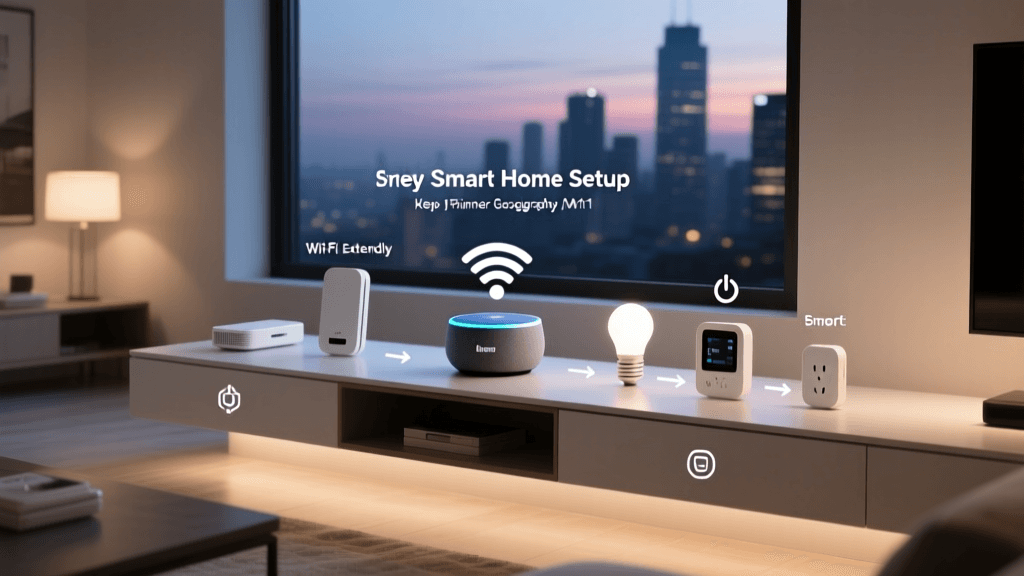
Step 3: Fortifying Your Mesh with Mains-Powered Repeaters
A common misconception is that adding more battery-powered sensors will strengthen the mesh network. This is false. Battery-powered devices are "sleepy" end devices; they do not route traffic. To build a robust mesh, you must strategically place mains-powered devices that act as routers.
For Zigbee networks, the IKEA TRÅDFRI Signal Repeater (approximately $15) is a cost-effective, dedicated router that plugs directly into a wall outlet. Alternatively, any mains-powered Zigbee smart plug (like the Innr SP 120 or Sonoff S31 Lite) will act as a router. Place these repeaters halfway between your central hub and the problem area. Avoid placing them inside metal electrical boxes or behind large appliances, as metal reflects and absorbs 2.4 GHz signals.
For Z-Wave networks, the Aeotec Range Extender 7 (approximately $45) is the gold standard. It supports Z-Wave Long Range (LR) and acts as a powerful routing node. Because Z-Wave operates on the sub-1 GHz band (908.42 MHz in the US), it penetrates walls and floors much better than Zigbee, but it still requires a solid backbone of routers to ensure low-latency command delivery. Aim for at least one Z-Wave router in every major room of your home.
Step 4: Hub Platform Specifics and Network Healing
Different smart home platforms handle mesh routing and network maintenance in unique ways. Understanding your specific hub's behavior is vital for advanced troubleshooting.
Home Assistant (ZHA vs. Zigbee2MQTT)
According to Home Assistant's official ZHA (Zigbee Home Automation) integration guide, the ZHA integration relies on the underlying Zigbee radio library (bellows or znp) to manage the network. ZHA performs automatic background network healing, but it can sometimes be too aggressive, causing temporary dropouts. If a device is stuck, you can use the "Reconfigure Device" button in the ZHA dashboard to force the hub to re-interview the device and update its routing table. For users running Zigbee2MQTT (Z2M), the platform provides a highly detailed network map visualization, allowing you to see exactly which router a sensor is connected to and the Link Quality Indicator (LQI). An LQI below 50 generally indicates a failing connection that requires a repeater.
Hubitat Elevation
Hubitat is renowned for its local processing speed, but its mesh management requires a more hands-on approach. While Zigbee networks on Hubitat are largely self-healing, Z-Wave networks often require a manual "Z-Wave Repair." This process forces every Z-Wave device to rediscover its neighbors and optimize its routing paths back to the Hubitat C-7 or C-8 hub. Run a Z-Wave Repair at night, as the process can take several hours and temporarily increase network latency.
Samsung SmartThings
SmartThings handles mesh healing entirely in the cloud and behind the scenes. You cannot manually trigger a network heal in the SmartThings app. If devices are dropping, the best troubleshooting step is to power-cycle the SmartThings Station or Hub v3, and then physically toggle the power on your mains-powered smart plugs to force the mesh to recalculate its routing tables.
Step 5: Identifying and Removing "Noisy" Devices
Not all smart home devices are created equal. Cheap, uncertified smart plugs and bulbs—often found on third-party marketplaces—can suffer from poor RF shielding or flawed firmware. These devices can become "noisy," continuously broadcasting malformed packets or requesting network addresses, effectively launching a localized Denial of Service (DoS) attack on your own mesh network.
How to spot a noisy device:
- Your hub's CPU usage spikes unexpectedly.
- Devices in completely different rooms drop offline simultaneously.
- Zigbee2MQTT logs show a flood of "No converter available" or "Interview failed" errors from a single MAC address.
If you suspect a noisy device, the only fix is to physically unplug it from the wall. Monitor your network stability for 24 hours. If the dropouts cease, permanently remove the offending device from your network and replace it with a certified product from a reputable brand like Aeotec, Inovelli, or Philips Hue.
Conclusion
Troubleshooting smart hub connectivity and mesh network issues is less about restarting apps and more about understanding the physical realities of radio frequencies. By eliminating USB 3.0 interference with a simple extension cable, carefully separating your Wi-Fi and Zigbee channels, and strategically deploying mains-powered repeaters, you can transform a frustrating, unreliable smart home into a rock-solid automated ecosystem. Remember that a mesh network is only as strong as its weakest router; invest time in building a solid backbone, and your devices will respond instantly for years to come.