The Promise and the Pitfalls of Mesh WiFi for Smart Homes
Upgrading to a mesh WiFi system is often marketed as the ultimate solution for whole-home connectivity. Systems like the Amazon Eero, Netgear Orbi, and TP-Link Deco promise to eliminate dead zones by using multiple nodes to create a seamless, unified network blanket. For streaming 4K video on a smart TV or taking a video call on a smartphone while walking from the living room to the backyard, mesh networks perform flawlessly. However, for smart home enthusiasts and DIY installers, mesh networks can introduce a unique set of frustrating connectivity issues specifically related to Internet of Things (IoT) devices.
If you have noticed your smart plugs dropping offline, your WiFi cameras failing to record motion events, or your smart bulbs becoming unresponsive to voice commands, your mesh network might actually be the culprit. Unlike high-end smartphones and laptops, most smart home devices utilize low-cost, low-power WiFi chips that struggle to interpret the advanced management protocols used by mesh routers to steer traffic and manage handoffs. In this comprehensive troubleshooting guide, we will explore exactly why mesh networks cause IoT dropouts and provide actionable, step-by-step solutions to stabilize your smart home ecosystem.
Why Do Smart Devices Disconnect from Mesh Networks?
To effectively troubleshoot connectivity dropouts, it is essential to understand the underlying technical conflicts between mesh router firmware and IoT hardware. The vast majority of smart home dropouts stem from three primary networking conflicts.
1. Band Steering and the 2.4GHz Dilemma
Mesh routers typically combine the 2.4GHz and 5GHz frequency bands into a single, unified Service Set Identifier (SSID). The router uses a feature called 'band steering' to automatically push capable devices onto the faster, less congested 5GHz band, while leaving legacy or low-bandwidth devices on the 2.4GHz band. The problem is that nearly all budget-friendly IoT devices—such as Wyze cameras, Kasa smart plugs, and ESP8266-based DIY sensors—only support 2.4GHz WiFi. When a mesh router aggressively attempts to steer these devices or masks the 2.4GHz network topology, the IoT device's network stack becomes confused, leading to failed connection attempts or sudden dropouts.
2. Aggressive Roaming Protocols (802.11k/v/r)
To create a 'seamless' mesh experience, routers utilize IEEE 802.11k, 802.11v, and 802.11r protocols. These protocols allow the router to actively monitor device signal strength and force a device to disconnect from a weaker node and reconnect to a stronger one. While an Apple iPhone handles these Fast BSS Transition management frames perfectly, cheap IoT microcontrollers often interpret these forced disconnections as network attacks or errors. Consequently, the smart device crashes its WiFi radio and fails to reconnect until it is manually rebooted or loses power.
3. DHCP Lease Times and Deep Sleep States
Battery-powered smart home devices, such as WiFi video doorbells and leak sensors, spend most of their time in a deep sleep state to conserve power. They wake up only to transmit data or renew their Dynamic Host Configuration Protocol (DHCP) IP address lease. Many consumer mesh routers default to short DHCP lease times (e.g., 24 hours or less). If a sleeping IoT device misses its renewal window, the mesh router may reassign its IP address to another device, resulting in an IP conflict that permanently knocks the smart device offline.
Step-by-Step Troubleshooting Guide
Resolving these issues requires diving into your mesh router's advanced settings. Follow these steps to optimize your network for IoT stability.
Step 1: Create a Dedicated IoT SSID
The most effective way to eliminate band steering conflicts is to isolate your smart home devices on a dedicated 2.4GHz-only network.
- Asus ZenWiFi / AiMesh: Navigate to the 'Guest Network' or 'IoT Network' tab in the web interface. Enable a 2.4GHz-only SSID and disable 'Smart Connect' for this specific band.
- TP-Link Deco: Open the Deco app, go to 'More' > 'Wi-Fi Settings', and enable the dedicated 'IoT Network' feature. Ensure it is locked to 2.4GHz.
- Amazon Eero: Eero does not allow splitting bands on the main SSID. Instead, use the 'Guest Network' feature, which can be configured to limit devices to 2.4GHz, or utilize Eero Secure profiles to restrict IoT devices to specific bands if supported by your firmware version.
Step 2: Disable Fast Roaming and Client Steering
If your devices are dropping offline when you walk around the house, or if they randomly reboot, you need to disable aggressive roaming protocols.
- Locate the 'Fast Roaming' or '802.11r' setting in your router's advanced wireless settings and turn it off.
- Disable 'Client Steering' or 'Node Steering'. This forces the mesh system to stop actively disconnecting devices from distant nodes. While your smartphone might stick to a farther node slightly longer, your smart plugs will remain stable.
Step 3: Optimize Mesh Node Placement
A common mistake in mesh network installation is placing nodes too close together. When nodes overlap significantly, IoT devices experience the 'ping-pong effect,' rapidly bouncing between two nodes with identical signal strengths, which exhausts the device's network buffer and causes a crash.
| Home Construction Type | Ideal Node Distance | Signal Overlap Target |
|---|---|---|
| Open Floor Plan / Drywall | 35 to 45 feet | -65 dBm at midpoint |
| Standard Wood Frame / Brick Veneer | 25 to 35 feet | -60 dBm at midpoint |
| Concrete / Lath and Plaster | 15 to 20 feet (or use wired backhaul) | -55 dBm at midpoint |
Step 4: Enable IGMP Snooping and Adjust Multicast
Smart home protocols rely heavily on multicast traffic to discover devices on the network. If your mesh router floods the network with multicast packets, low-power IoT chips can become overwhelmed. Ensure that 'IGMP Snooping' is enabled in your router's LAN settings. This forces the router to intelligently route multicast traffic only to the nodes that have active listeners, drastically reducing wireless congestion.
Visualizing Signal Degradation and Node Placement
Understanding how WiFi signals degrade over distance is critical for troubleshooting. The 2.4GHz band penetrates solid objects much better than the 5GHz band, which is why IoT devices rely on it. However, placing nodes based on 5GHz dead zones can lead to massive 2.4GHz overlaps, confusing your smart home gear. The chart below illustrates the difference in signal degradation between the two bands through standard drywall.
As visualized, the 2.4GHz signal remains well within the acceptable threshold for IoT devices (above -75 dBm) even at 60 feet. If you place a secondary mesh node only 20 feet away from your primary router, the 2.4GHz overlap is immense, creating a high-interference zone where cheap smart plugs will constantly drop connections.
Offloading WiFi: The Ultimate Mesh Network Fix
If you have optimized your mesh settings and are still experiencing dropouts, the best troubleshooting step is to remove the problematic devices from the WiFi network entirely. WiFi was designed for high-bandwidth, continuous data streams, not for sending tiny packets of telemetry data from a temperature sensor every ten minutes.
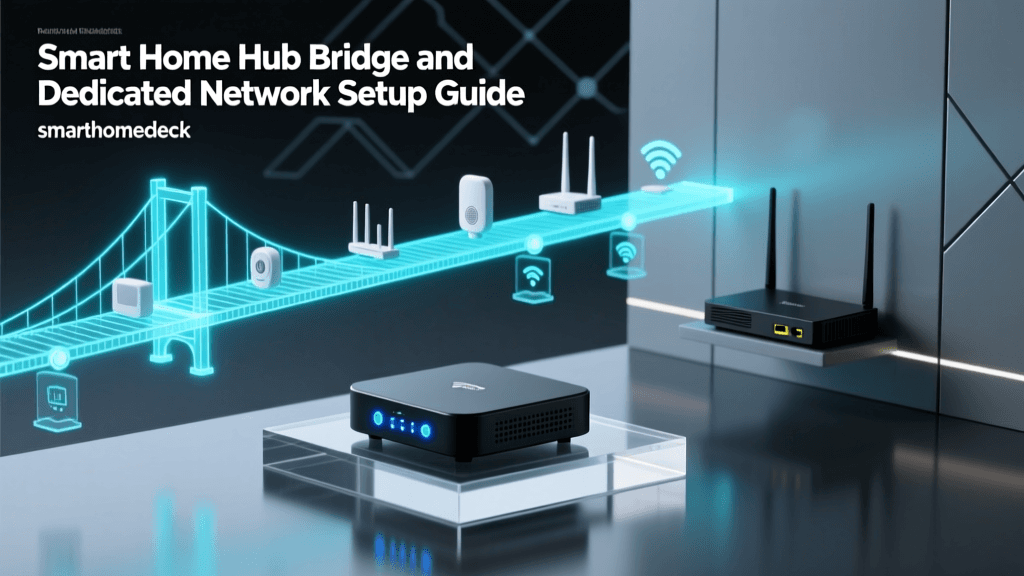
Consider migrating your smart home ecosystem to dedicated IoT protocols like Zigbee, Z-Wave, or the emerging Matter over Thread standard. By utilizing a dedicated hub—such as the Philips Hue Bridge, the Home Assistant SkyConnect, or an Aeotec Smart Home Hub—you create a separate, low-power mesh network specifically designed for IoT devices. This not only eliminates WiFi dropout issues but also frees up valuable airtime on your primary mesh network, improving speeds for your phones, laptops, and streaming devices.
Security Considerations for IoT on Mesh Networks
When troubleshooting and reconfiguring your network, it is vital to maintain strict security boundaries. IoT devices are notorious for having unpatched firmware and weak default security protocols. According to CISA guidelines on IoT security, isolating IoT devices from your primary computing network is a fundamental best practice to prevent lateral movement in the event a smart bulb or camera is compromised.
When creating your dedicated 2.4GHz IoT SSID, ensure that 'AP Isolation' or 'Client Isolation' is enabled if your router supports it. This prevents IoT devices from communicating directly with one another or with your personal NAS drives and PCs. Furthermore, the FCC guidelines on wireless interference suggest that maintaining a clean network environment with minimal unauthorized devices also helps reduce RF noise and packet collisions, indirectly improving both security and stability.
For advanced users running prosumer mesh systems like Asus or Ubiquiti, assigning your IoT SSID to a dedicated Virtual Local Area Network (VLAN) with strict firewall rules is the gold standard. Adhering to Wi-Fi Alliance EasyMesh standards ensures that your multi-vendor nodes communicate securely, but the responsibility of segmenting the IoT traffic ultimately falls on the network administrator.
Pro-Tip for Installers: Always document your DHCP reservations. When troubleshooting a mesh network, assigning static IP addresses (via DHCP reservation) to your smart home hubs, bridges, and critical cameras prevents IP conflicts and ensures that local automation routines continue to function even if the mesh system undergoes a reboot.
Conclusion
Mesh WiFi systems are incredible tools for delivering high-speed internet to every corner of your home, but their advanced traffic management features are often fundamentally incompatible with the low-cost networking chips found in smart home devices. By understanding the conflicts caused by band steering, aggressive roaming protocols, and improper node placement, you can systematically eliminate the root causes of IoT dropouts. Whether you choose to isolate your devices on a dedicated 2.4GHz SSID, adjust your DHCP lease times, or offload your smart home entirely to a Zigbee or Thread hub, taking control of your network topology is the key to a reliable, responsive, and frustration-free smart home.