The Smart Home Mesh Dilemma: Why Your Devices Keep Dropping
Upgrading to a WiFi mesh network is often touted as the ultimate solution for whole-home smart home connectivity. Systems like the Eero Pro 6E, TP-Link Deco XE75, and Netgear Orbi promise seamless roaming and blanket coverage. However, many DIY installers and homeowners quickly discover a frustrating reality: while their smartphones and laptops stream 4K video without issue, their smart bulbs, thermostats, and security cameras constantly drop offline. The average modern smart home contains between 30 and 50 connected IoT (Internet of Things) devices, and some enthusiast setups exceed 100. This massive density of low-power, 2.4GHz-dependent devices creates a unique set of challenges that standard consumer mesh networks are not always configured to handle out of the box.
Troubleshooting smart home connectivity requires a shift in perspective. You are no longer just optimizing for high bandwidth; you are optimizing for high device density, low latency, and RF (Radio Frequency) coexistence. In this comprehensive guide, we will walk through the exact steps to diagnose and resolve WiFi mesh dropouts, optimize your backhaul, manage IP exhaustion, and eliminate interference to create a bulletproof smart home network.
Step 1: Diagnosing Backhaul Congestion and Node Placement
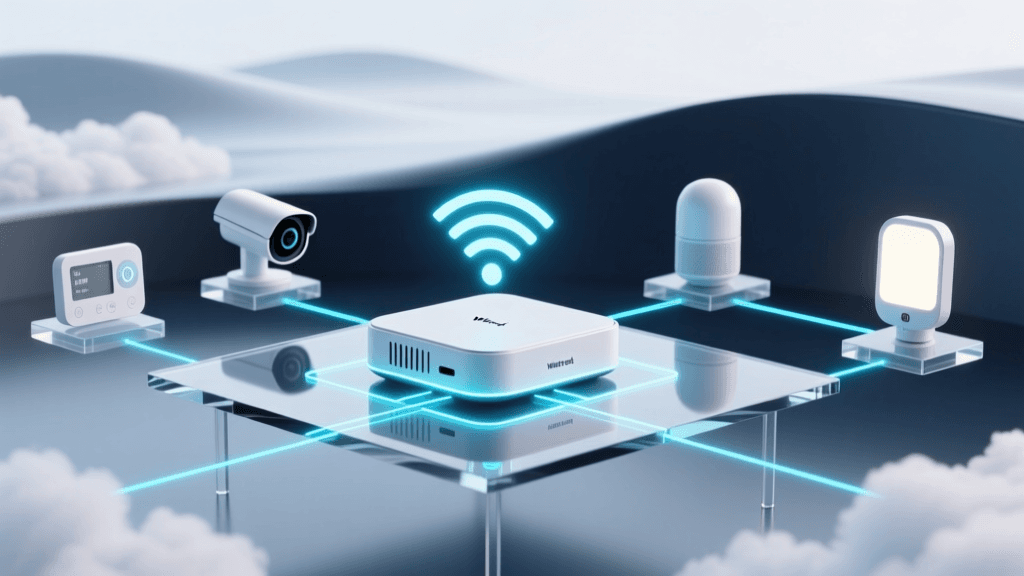
The backbone of any mesh network is its backhaul—the dedicated or shared communication link between the mesh nodes. When your smart home devices send a signal to a satellite node, that node must forward the data back to the primary router. If the backhaul is congested or degraded by physical obstructions, IoT devices will time out and drop offline.
Many homeowners place mesh nodes in the exact spots where they experience dead zones. This is a critical mistake. A mesh node cannot boost a signal it cannot receive. Nodes must be placed halfway between the primary router and the dead zone, ensuring a strong backhaul connection. Furthermore, building materials severely impact signal attenuation, particularly on the 5GHz and 6GHz bands used for backhaul communication.
| Building Material | Signal Attenuation (2.4GHz) | Signal Attenuation (5GHz) | Impact on Mesh Backhaul |
|---|---|---|---|
| Drywall (1/2 inch) | 3 dB | 4 dB | Minimal |
| Wooden Studs / Plywood | 5 dB | 9 dB | Moderate |
| Brick / Cinderblock | 12 dB | 25 dB | Severe |
| Concrete with Rebar | 15 dB | 35+ dB | Catastrophic (Avoid) |
| Low-E Glass / Mirrors | 10 dB | 20 dB | High (Often overlooked) |
Actionable Fix: Audit your node placement. Ensure nodes have a clear line of sight to one another, avoiding placement behind large appliances (which act as Faraday cages) or near reflective surfaces like mirrors and Low-E glass windows. If you must penetrate brick or concrete, a wireless backhaul will fail. You must transition to a wired backhaul using Ethernet or MoCA adapters, which we will cover later.
Step 2: Optimizing Band Steering and IoT Segmentation
Most modern mesh systems utilize 'band steering,' a feature that combines the 2.4GHz, 5GHz, and 6GHz bands into a single SSID (network name). The router then attempts to automatically assign devices to the best band. While this works beautifully for iPhones and modern laptops, it is a nightmare for smart home IoT devices.
The vast majority of smart home devices—such as Philips Hue bridges, Ring cameras, Ecobee thermostats, and cheap smart plugs—only support the 2.4GHz band. Furthermore, many older IoT chips fail to connect if they detect a combined SSID or if the router attempts to steer them to a 5GHz band during the initial provisioning handshake. According to the Wi-Fi Alliance, while newer standards like Wi-Fi 6 improve multi-device efficiency, legacy IoT hardware remains stubbornly tied to basic 802.11n 2.4GHz protocols.
Actionable Fix: You need to segment your network. Depending on your mesh brand, you have a few options:
- Eero: Use the 'Guest Network' feature. Enable the Guest Network, restrict it to 2.4GHz only (if your firmware allows), and connect all your IoT devices to it. This isolates them from your main devices and prevents band-steering confusion.
- TP-Link Deco & Asus ZenWiFi: Many of these systems allow you to create a dedicated 'IoT Network' or a secondary SSID specifically locked to the 2.4GHz band. Move all smart plugs, bulbs, and sensors to this dedicated SSID.
- Advanced (VLANs): If you are using a prosumer system like the Ubiquiti UniFi Dream Machine or a TP-Link Omada setup, create a dedicated VLAN for IoT devices. This not only solves band steering issues but also provides crucial security by preventing a compromised smart bulb from accessing your personal computers or NAS drives.
Step 3: Managing IP Address Exhaustion and DHCP Limits
A hidden culprit behind sudden, widespread smart home dropouts is DHCP (Dynamic Host Configuration Protocol) exhaustion. Every device on your network requires a unique IP address. A standard home subnet (typically a /24 subnet mask, like 192.168.1.x) supports up to 254 unique addresses. However, consumer mesh routers often artificially limit their DHCP pool to 32, 50, or 100 devices to conserve processing power and memory.
When you install a comprehensive smart lighting system (like Lutron Caseta or Hue), add a few smart switches, security cameras, and voice assistants, you can easily hit a 50-device ceiling. Once the DHCP pool is exhausted, new devices cannot join, and existing devices may fail to renew their IP leases, causing them to drop offline randomly.
Actionable Fix: Log into your mesh router's advanced settings (often accessible via the web interface rather than the mobile app) and locate the DHCP Server settings. Expand the DHCP pool to the maximum allowed (e.g., 192.168.1.2 to 192.168.1.253). Additionally, reduce the 'DHCP Lease Time' from the default 24 hours to 2 or 4 hours. IoT devices rarely move, but a shorter lease time ensures that if a device crashes or reboots, its IP address is returned to the pool faster, preventing ghost entries from clogging your router's memory.
Visualizing Mesh Performance: Device Capacity vs. Node Count
Not all mesh nodes are created equal. The number of devices a single node can stably manage depends heavily on its internal RAM, CPU, and the number of spatial streams (antennas) it possesses. Below is a visualization of the estimated stable IoT device capacity per node across different mesh tiers.
As the chart illustrates, simply adding more entry-level nodes will not solve your problems if the nodes themselves lack the hardware to manage the concurrent connection requests. If you have over 80 smart home devices, you must invest in mid-range to high-end tri-band or quad-band mesh systems that dedicate an entire 5GHz or 6GHz radio purely to backhaul, leaving the 2.4GHz radio entirely free for your IoT devices.
Step 4: Eliminating RF Interference and Channel Overlap
The 2.4GHz spectrum is incredibly crowded. It is shared by your WiFi network, Bluetooth devices, microwaves, baby monitors, and crucially, your Zigbee and Thread smart home networks. Zigbee and Thread operate on the exact same 2.4GHz frequencies as WiFi. If your WiFi router is set to auto-select channels, it may jump directly on top of your Zigbee hub's channel, causing your smart locks and motion sensors to fail.
WiFi uses channels 1, 6, and 11 (which do not overlap with each other). Zigbee uses channels 11, 15, 20, and 25. Notice the overlap? If your WiFi is on channel 1, it overlaps with Zigbee channels 11 and 15. If your WiFi is on channel 11, it overlaps with Zigbee channels 20 and 25.
Actionable Fix: You must manually separate these protocols. Force your mesh router's 2.4GHz band to use Channel 1. Then, log into your Zigbee/Thread hub (such as a Philips Hue Bridge, Home Assistant SkyConnect, or Hubitat) and manually set its network to Channel 20 or 25. This guarantees a physical separation in the RF spectrum, drastically reducing packet loss for your smart home sensors.
Additionally, beware of USB 3.0 interference. Poorly shielded USB 3.0 cables and external hard drives emit massive amounts of RF noise precisely in the 2.4GHz band. If your mesh node has a USB port in use, or is sitting next to a PC with external drives, move the node at least 3 feet away to prevent localized signal degradation.
Advanced Troubleshooting: When to Add MoCA or Access Points
If you have optimized placement, segmented your SSIDs, expanded your DHCP pool, and separated your RF channels, but devices in specific areas (like a detached garage, a basement, or a home built with plaster and lath) still drop offline, wireless backhaul is simply not viable. You must transition to a wired backbone.
Retrofitting a home with Cat6 Ethernet can cost thousands of dollars and require cutting open walls. The most cost-effective, high-performance alternative for DIY installers is MoCA (Multimedia over Coax Alliance). MoCA adapters utilize the existing coaxial TV cables in your walls to transmit network data at speeds up to 2.5 Gbps with latency under 5ms. The Multimedia over Coax Alliance notes that MoCA provides a near-Ethernet equivalent connection, making it the gold standard for smart home backhauls in homes without pre-wired Ethernet.
Actionable Fix: Purchase a pair of MoCA 2.5 adapters (such as the Hitron MCA2500 or Actiontec ECB7250K, typically costing between $120 and $160). Connect one adapter to your primary mesh router and a nearby coax wall jack. Connect the second adapter to a coax jack in the dead zone, and plug it directly into the Ethernet WAN/LAN port of your satellite mesh node. This instantly converts your satellite node into a hardwired Access Point, freeing up 100% of its wireless radios to serve your struggling IoT devices.
Conclusion
Troubleshooting a smart home WiFi mesh network goes far beyond simply checking if the internet is working. It requires a systematic approach to network architecture. By properly placing your nodes to preserve backhaul integrity, segmenting your 2.4GHz IoT devices to prevent band-steering errors, expanding your DHCP limits, and carefully managing RF channel overlap with Zigbee and Thread networks, you can transform a frustrating, unreliable setup into a robust, automated ecosystem. When wireless physics simply get in the way, leveraging MoCA adapters provides a professional-grade wired backhaul without the drywall repair bills. Take the time to audit your network settings, and your smart home will finally operate as seamlessly as promised.