The Hidden Frustrations of Smart Home Dropouts
Nothing shatters the illusion of a futuristic, automated home faster than a living room light that refuses to turn on or a smart thermostat that drops offline in the middle of winter. When you first install a smart home hub—whether it is a Samsung SmartThings Station, a Philips Hue Bridge, or a DIY powerhouse like Home Assistant Green—everything usually works flawlessly. However, as you add dozens of sensors, smart plugs, and motorized blinds, the network can become congested, leading to latency, unresponsive devices, and complete hub disconnects.
Troubleshooting smart home connectivity is not just about rebooting your router. It requires a fundamental understanding of radio frequency (RF) interference, mesh network routing, IP address management, and protocol limitations. In this comprehensive guide, we will walk you through the exact steps professional installers use to diagnose and permanently fix smart home hub and network drops.
Understanding the Anatomy of a Mesh Network
Unlike traditional Wi-Fi, where every device connects directly to a central router, most smart home devices rely on mesh networking protocols like Zigbee and Z-Wave. In a mesh network, mains-powered devices (like smart plugs and wired light switches) act as 'repeaters' or 'routers,' passing signals from battery-powered end devices (like door sensors and motion detectors) back to the central hub.
When a hub drops offline or a device becomes unresponsive, the issue is rarely the device itself. According to the Connectivity Standards Alliance, the vast majority of Zigbee and Z-Wave network failures stem from three core issues: RF interference from overlapping Wi-Fi channels, physical signal attenuation from building materials, and poor mesh routing paths caused by unplugged repeaters.
Protocol Comparison: Know Your Network
Before diving into troubleshooting, it is crucial to identify which protocol your struggling device uses. Each protocol operates on different frequencies and has unique limitations.
| Protocol | Frequency | Max Range (Line of Sight) | Mesh Capability | Common Use Cases |
|---|---|---|---|---|
| Wi-Fi (2.4GHz) | 2.4 GHz / 5 GHz | 150 - 300 ft | No (Star Topology) | Cameras, Plugs, Thermostats |
| Zigbee | 2.4 GHz | 300 ft | Yes (Up to 65k nodes) | Sensors, Bulbs, Switches |
| Z-Wave | 908.42 MHz (US) | 300 ft | Yes (Up to 232 nodes) | Locks, Garage Doors, Sensors |
| Thread / Matter | 2.4 GHz | 300 ft | Yes (IP-based Mesh) | New Gen Sensors, Nanoleaf |
Step-by-Step Troubleshooting Guide
Step 1: Eliminate 2.4GHz RF Interference
The most common cause of Zigbee and Thread network drops is interference from your home's Wi-Fi network. Both Zigbee and Wi-Fi operate in the crowded 2.4GHz spectrum. If your Wi-Fi router is set to 'Auto' channel selection, it may jump directly on top of your Zigbee network, causing massive packet loss.
The Fix: You must separate your Wi-Fi and Zigbee channels. Zigbee operates on channels 11 through 26. However, to avoid Wi-Fi overlap, you should only use Zigbee Channels 11, 15, 20, or 25.
- Set your 2.4GHz Wi-Fi router to Channel 1, 6, or 11 (and lock it there).
- Set your Zigbee Hub (e.g., Philips Hue, ConBee II, Home Assistant SkyConnect) to Channel 15, 20, or 25.
- Disable 'Smart Connect' or 'Band Steering' on your router, which often forces 2.4GHz devices into congested channels.
Step 2: Optimize Hub Placement and USB Extensions
Many DIY installers plug their Zigbee/Z-Wave USB dongles (like the Aeotec Z-Stick or Sonoff Zigbee Dongle) directly into the back of a Raspberry Pi or a metal server chassis. This is a critical mistake. The metal chassis acts as a Faraday cage, and the USB 3.0 ports generate massive amounts of RF noise that specifically target the 2.4GHz band, effectively blinding your hub.
The Fix: Always use a 10-foot shielded USB 2.0 extension cable to move your smart home dongle away from the server and up to a higher elevation. Place the hub in a central, open location in your home, ideally on the main floor, away from microwaves, cordless phones, and large metal appliances like refrigerators.
Step 3: Rebuild and Heal the Mesh
When you move furniture, unplug a smart lamp, or lose power, the mesh network's routing table can become corrupted. Battery-powered sensors may still be trying to send their signals through a smart plug that was moved to another room or thrown in a drawer.
The Fix: Perform a 'Mesh Heal' or 'Network Repair'.
- For Z-Wave (Home Assistant / Hubitat): Navigate to your Z-Wave settings and select 'Heal Network'. This forces every device to recalculate the most efficient path back to the hub. Do this at 2:00 AM, as it generates heavy network traffic and drains batteries.
- For Zigbee: Zigbee networks are self-healing, but it can take hours. To force a repair, you can power-cycle the hub, or temporarily remove and re-pair the stubborn end-device while it is physically close to a known good router (like a smart plug).
Step 4: Manage IP Conflicts and DHCP Leases
If your entire hub drops off the network (e.g., the SmartThings app says 'Hub Offline' or Home Assistant becomes unreachable via the web interface), the issue is likely on your local area network (LAN), not the RF mesh.
Routers assign IP addresses via DHCP. If your hub is assigned an IP address that your router later gives to a guest's smartphone, an IP conflict occurs, and the hub is booted off the network.
The Fix: Log into your router's admin panel and set a Static IP or DHCP Reservation for your smart home hub, your Wi-Fi access points, and any smart printers or cameras. Assign these devices an IP address outside of your standard DHCP pool (e.g., if your pool is 192.168.1.100 to 192.168.1.200, assign your hub 192.168.1.10).
Visualizing Signal Attenuation in Your Home
Understanding how your home's building materials affect radio waves is crucial for placing mesh repeaters. The chart below illustrates the average signal loss (attenuation) you can expect from common building materials when using 2.4GHz (Zigbee/Thread) and 900MHz (Z-Wave) frequencies.
As the data shows, metal studs and foil-backed insulation are the ultimate enemies of smart home signals. If your hub is on the first floor and your smart lock is on the second floor, and the floors are separated by HVAC ductwork and metal framing, you will need a dedicated hardwired repeater or a Z-Wave range extender placed in the stairwell to bridge the gap.
Advanced Network Segmentation for Wi-Fi Devices
While Zigbee and Z-Wave use hubs, Wi-Fi smart devices (like TP-Link Kasa plugs, Ring cameras, and Roborock vacuums) connect directly to your router. A common issue is router overload. Most consumer routers max out at 30 to 50 concurrent Wi-Fi connections before their internal memory leaks, causing random devices to drop.
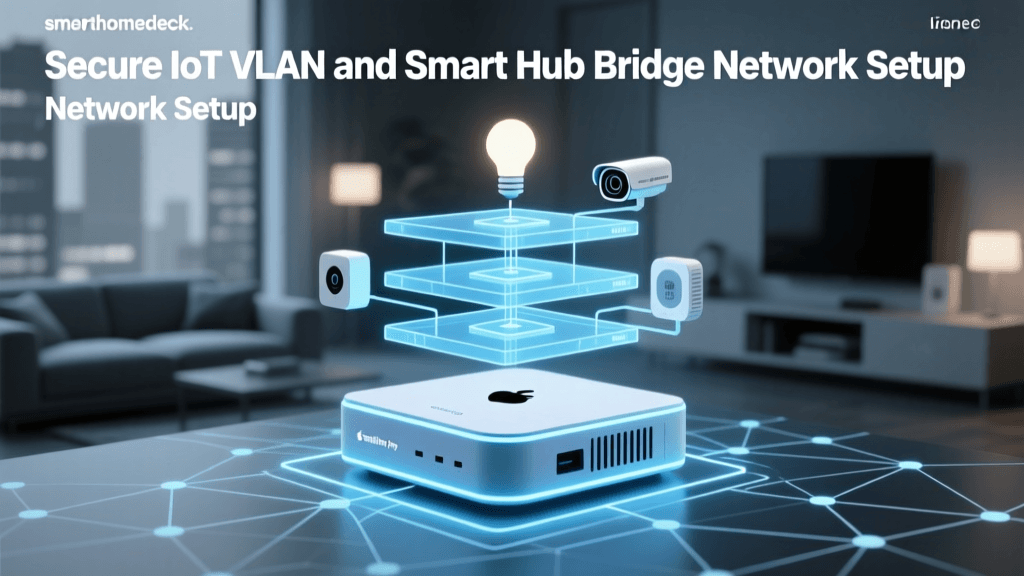
The Fix: If you have more than 40 smart home devices, you must upgrade to a prosumer router system (like Ubiquiti UniFi or TP-Link Omada) and create a dedicated IoT VLAN (Virtual Local Network).
Pro Tip: Creating an IoT VLAN not only saves your router's CPU from broadcasting thousands of mDNS packets, but it also secures your home. According to guidelines from Matter and modern IoT security standards, isolating cheap, unpatchable smart bulbs from your personal computers and NAS drives prevents malicious actors from using a vulnerable smart plug as a backdoor into your private data.
Troubleshooting Voice Assistant Latency
Sometimes the hub is fine, the network is fine, but your voice commands to Alexa or Google Home take 5 to 10 seconds to execute, or fail entirely. This is usually a cloud-to-local API timeout.
- Check Local Execution: Ensure your hub supports local processing. Hubs like Hubitat Elevation and Home Assistant process automations locally, meaning the command from Alexa goes to the cloud, then back to your local hub, and executes instantly without relying on external brand servers (like Tuya or SmartLife).
- Router DNS Settings: Change your router's DNS servers to Cloudflare (1.1.1.1) or Google (8.8.8.8). ISP-provided DNS servers often struggle to resolve the complex API endpoints used by voice assistants to route commands to smart home servers.
The Future: Matter and Thread Border Routers
As the industry transitions to the Matter standard, many new devices are utilizing the Thread protocol. Thread operates on 2.4GHz but uses IPv6 natively. Troubleshooting Thread is different from Zigbee because Thread relies on 'Border Routers' (like Apple TV 4K, HomePod Mini, or Google Nest Hubs) rather than a single central hub.
If Thread devices are dropping, ensure you have at least two Thread Border Routers from the same ecosystem (e.g., two Apple TVs, or two Google Nest Hubs). Mixing Apple and Google Thread Border Routers on the same network can cause partitioning, where the mesh splits into two competing networks, causing devices to randomly drop offline.
Essential Troubleshooting Tools for DIYers
To move beyond guesswork, invest in these diagnostic tools:
- Wi-Fi Analyzer App (Free): Use an app like 'WiFi Analyzer' on Android to map out your neighbors' 2.4GHz networks and find the least congested channel for your router.
- Zigbee2MQTT Map: If you use Home Assistant, the Zigbee2MQTT add-on generates a visual map of your mesh network. Look for devices with low 'LQI' (Link Quality Indicator) scores and place a smart plug halfway between them and the hub.
- UPS Battery Backup: Many network drops are caused by micro-outages (brownouts) that reboot your router but leave your modem online, causing IP assignment failures. A simple $50 APC or CyberPower UPS for your modem, router, and smart home hub will eliminate 90% of unexplained offline events.
Conclusion
Troubleshooting smart home hub connectivity and network drops requires a methodical approach. By separating your Wi-Fi and Zigbee channels, utilizing USB extension cables to dodge RF noise, assigning static IPs, and strategically placing mesh repeaters to overcome building materials, you can achieve a 99.9% uptime for your automated home. Remember that a smart home is only as reliable as the network that supports it—invest the time to build a solid foundation, and your home will work seamlessly for years to come.